
Aadhaar Card Status Guide
Check your Aadhaar card status online for enrolment, update, and PVC card requests using myAadhaar portal, mAadhaar app, and UMANG app. You can also track your Aadhaar status by calling the UIDAI helpline at 1947.
What Types of Aadhaar Status Can You Check?
- Enrolment Status is for people who recently enrolled for a new Aadhaar card at an enrolment centre. This tells you whether your Aadhaar number has been generated yet or is still being processed. New enrolments typically take anywhere from 10 to 90 days.
- Update Status is for people who submitted a request to change their name, address, date of birth, mobile number, or other details. When you submit an update (online or at a centre), you get a reference number. This status tells you whether the change has been approved, is still under review, or was rejected.
- PVC Card Status is for people who ordered the physical PVC Aadhaar card (the credit card sized one). This tracks whether the card has been printed, dispatched through India Post, or delivered.
- Letter Dispatch Status tells you whether the original Aadhaar letter (the paper one that comes by post after fresh enrolment) has been sent out and delivered.
| Sr. No. | Status Check Methods |
|---|---|
| 1 | Check Enrolment or Update Status |
| 2 | Check Aadhaar PVC Card Order Status |
| 3 | Check Status using mAadhaar App |
| 4 | Check Status using UMANG App |
| 5 | Check Status by Calling 1947 |
What You'll Need
To check your status, keep one of these reference numbers handy:
- EID (Enrolment ID) is the 28-digit number printed on the acknowledgement slip you received after enrolment or update at a centre. It's made up of a 14-digit enrolment number and a 14-digit date/time stamp.
- URN (Update Request Number) is the 14-digit number you get when you submit a demographic update (like a name or address change).
- SRN (Service Request Number) is the number you get when you do an online document update or order a PVC card.
If you've lost your acknowledgement slip and don't remember any of these numbers, don't worry. I'll cover how to retrieve them further down.
Method 1: Check Status on the myAadhaar Portal
This is the most direct and commonly used method. Works for enrolment status, update status, and PVC card status.
For Enrolment or Update Status:
- Go to myaadhaar.uidai.gov.in
- Click on "Check Enrolment or Update Status"
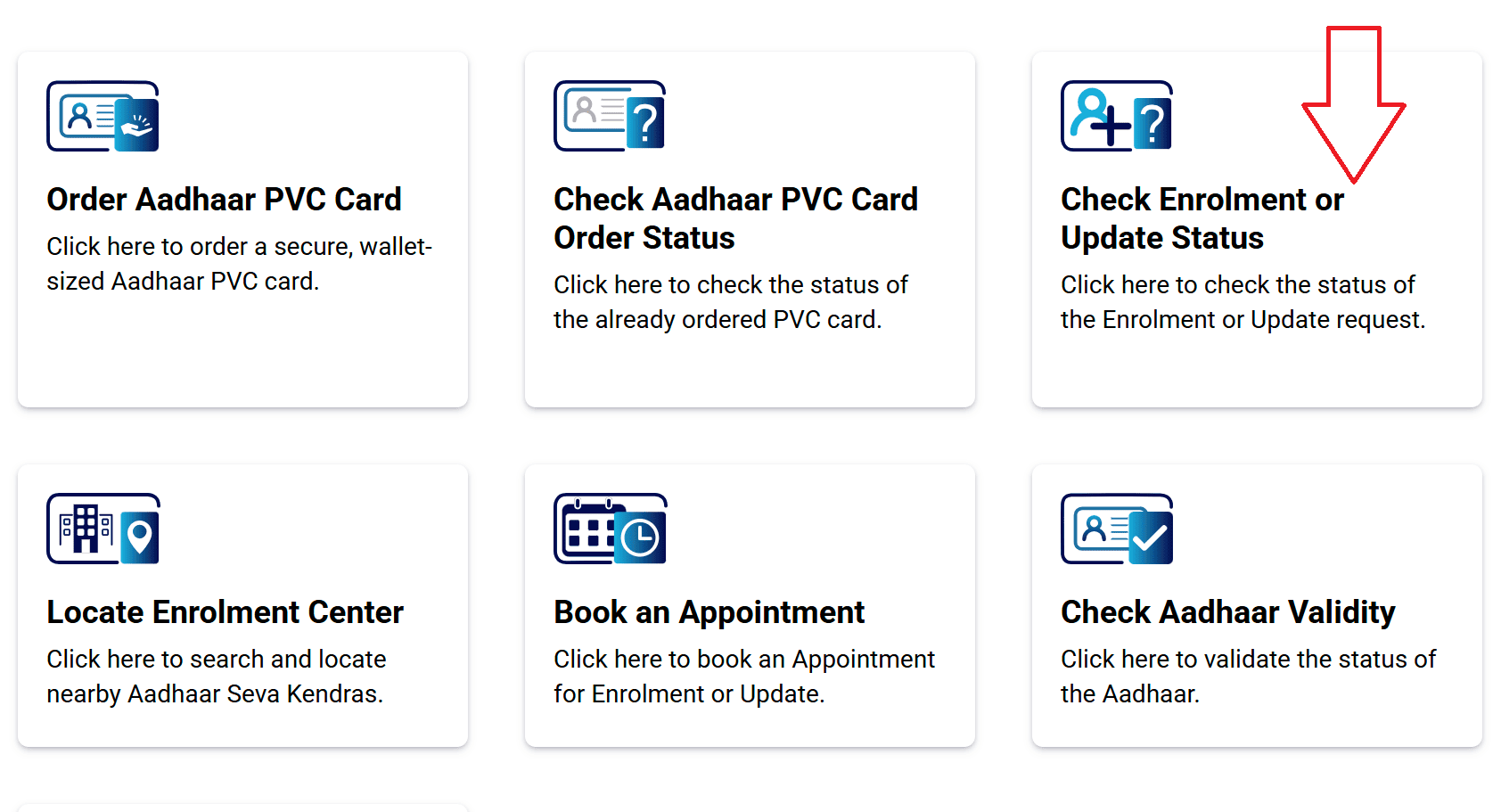
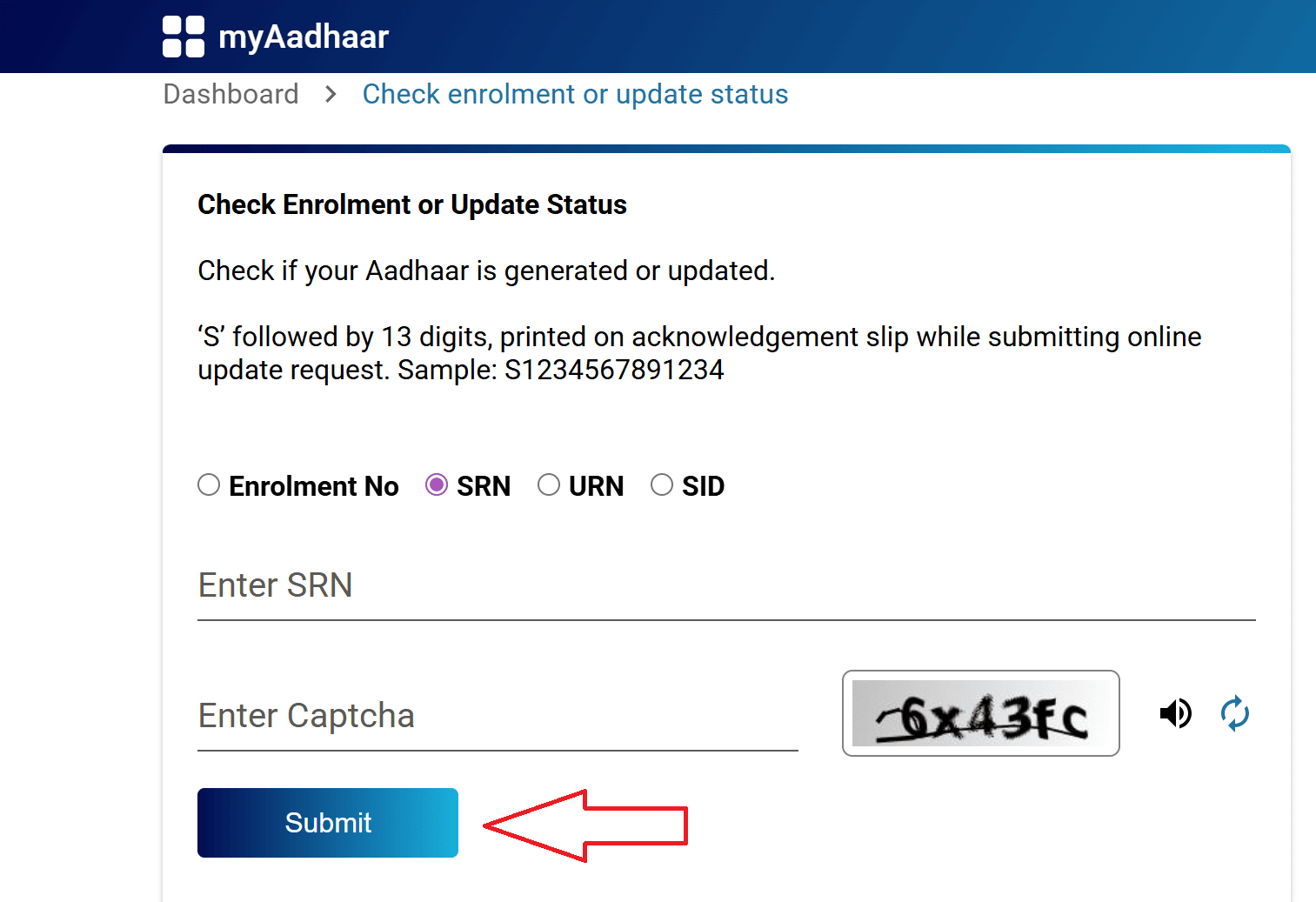
- Enter your 28-digit EID, or your SRN, URN, or SID from the acknowledgement slip
- Fill in the captcha code
- Click "Submit"
For PVC Card Order Status:
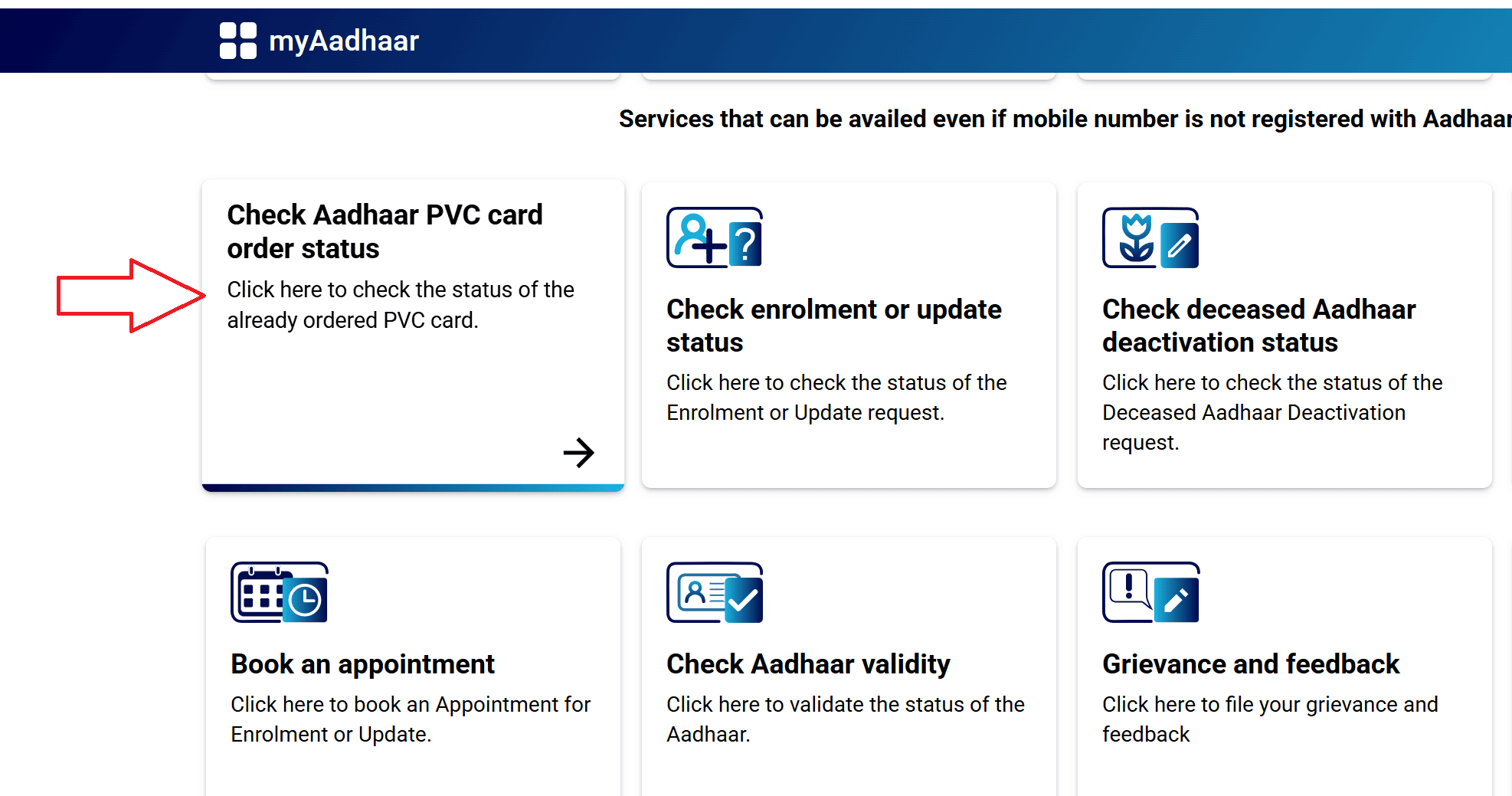
- Enter your SRN (the one you received when you placed the PVC order)
- Fill in the captcha and hit Submit
Method 2: Check Status on the mAadhaar App
If you prefer doing things on your phone, the mAadhaar app works well for this.
- Download mAadhaar from the Google Play Store or Apple App Store
- Open the app and navigate to "Enrolment & Update Status" from the main menu
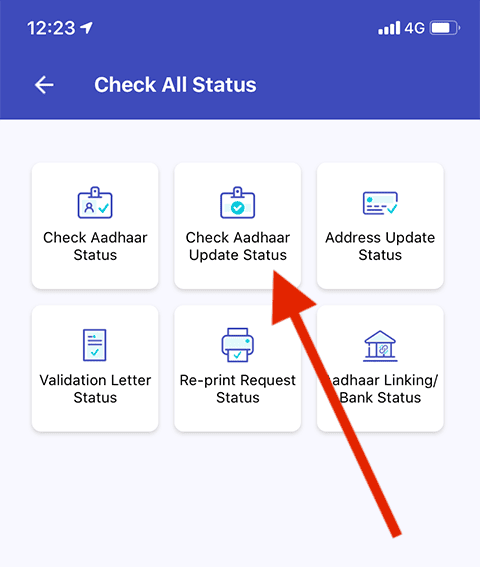
- Enter your 28-digit EID and the captcha code
- Tap "Check Status"
Method 3: Check Status on the UMANG App
UMANG bundles a lot of government services in one place, and Aadhaar status tracking is one of them.
- Download the UMANG app or visit web.umang.gov.in
- Log in with your mobile number and OTP
- Go to "All Services" and select "Aadhaar"
- Choose "Check Enrolment & Update Status"
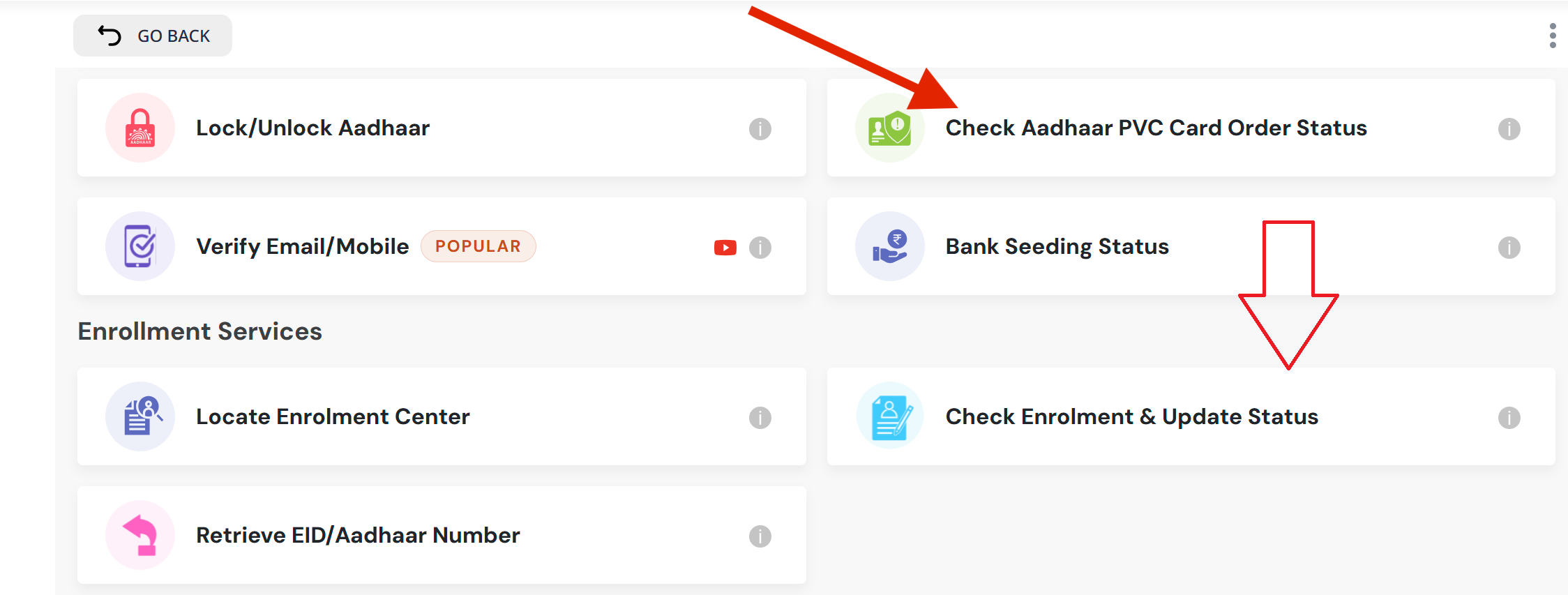
- Enter your EID, fill in the captcha, and submit
For PVC card status, look for "Check Aadhaar PVC Card Order Status" under the same Aadhaar services section.
Method 4: Check Status by Calling 1947
Don't have internet access or just find it easier to make a phone call? You can check your status by calling UIDAI's toll-free helpline.
- Dial 1947 from your registered mobile number
- Follow the IVR (automated voice) prompts
- Press 1 for enrolment and update status, 2 for enrolment status specifically, 3 for PVC card status, or 4 for appointment status
- Enter your EID when asked
- The system will tell you the current status
The helpline is available 24/7 through the automated system. If you need to speak to a person, agent support is available from 7 AM to 11 PM, Monday to Saturday.
Lost Your EID or URN? Here's How to Get It Back
It's pretty common to misplace the acknowledgement slip, especially if weeks or months have passed since your enrolment. Here's how to retrieve your details:
- Visit myaadhaar.uidai.gov.in and click on "Retrieve Aadhaar number/EID/SID"
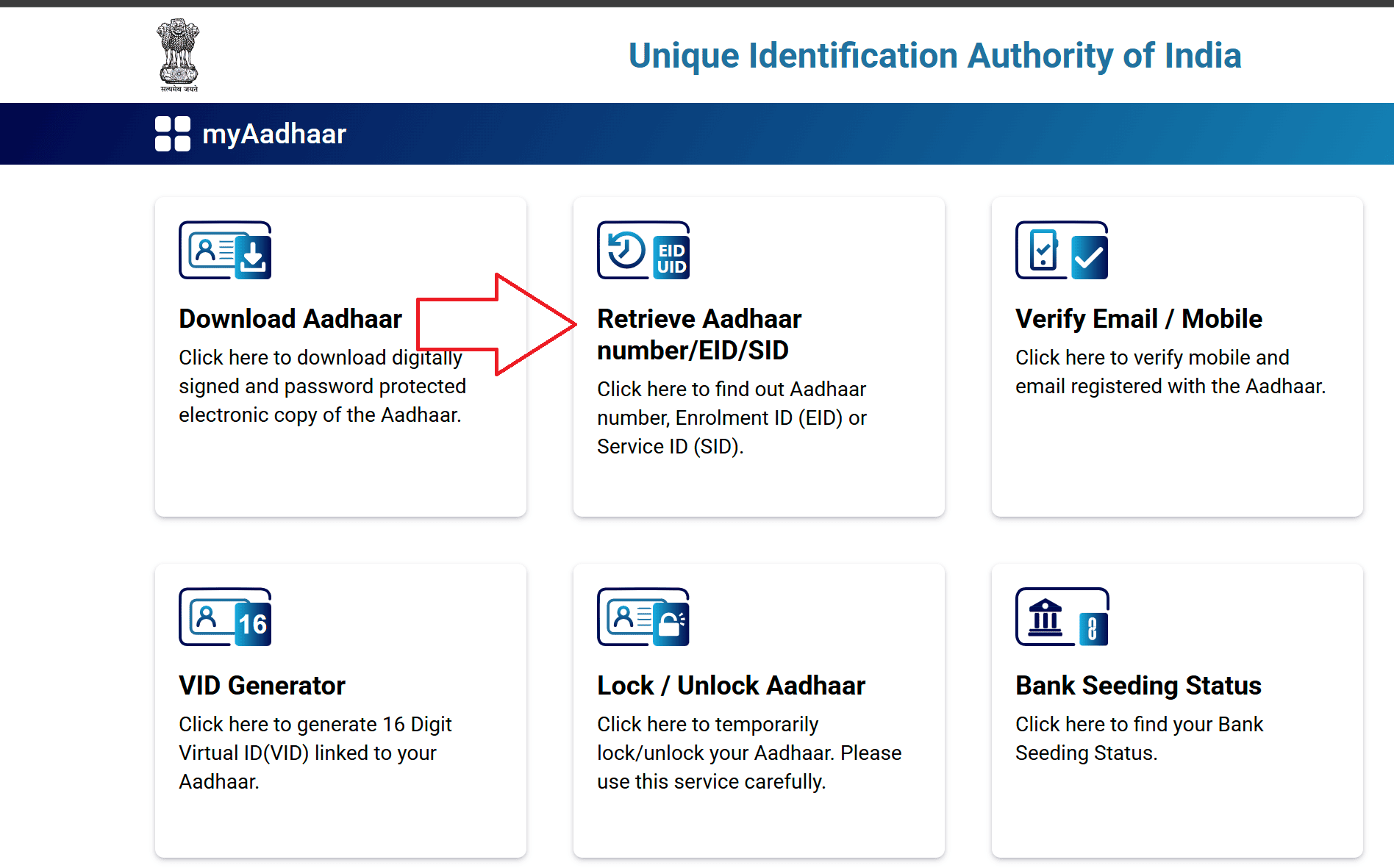
- Enter your full name (as it appears on your Aadhaar), your registered mobile number or email, and the captcha
- Click "Send OTP" and verify with the OTP sent to your registered number
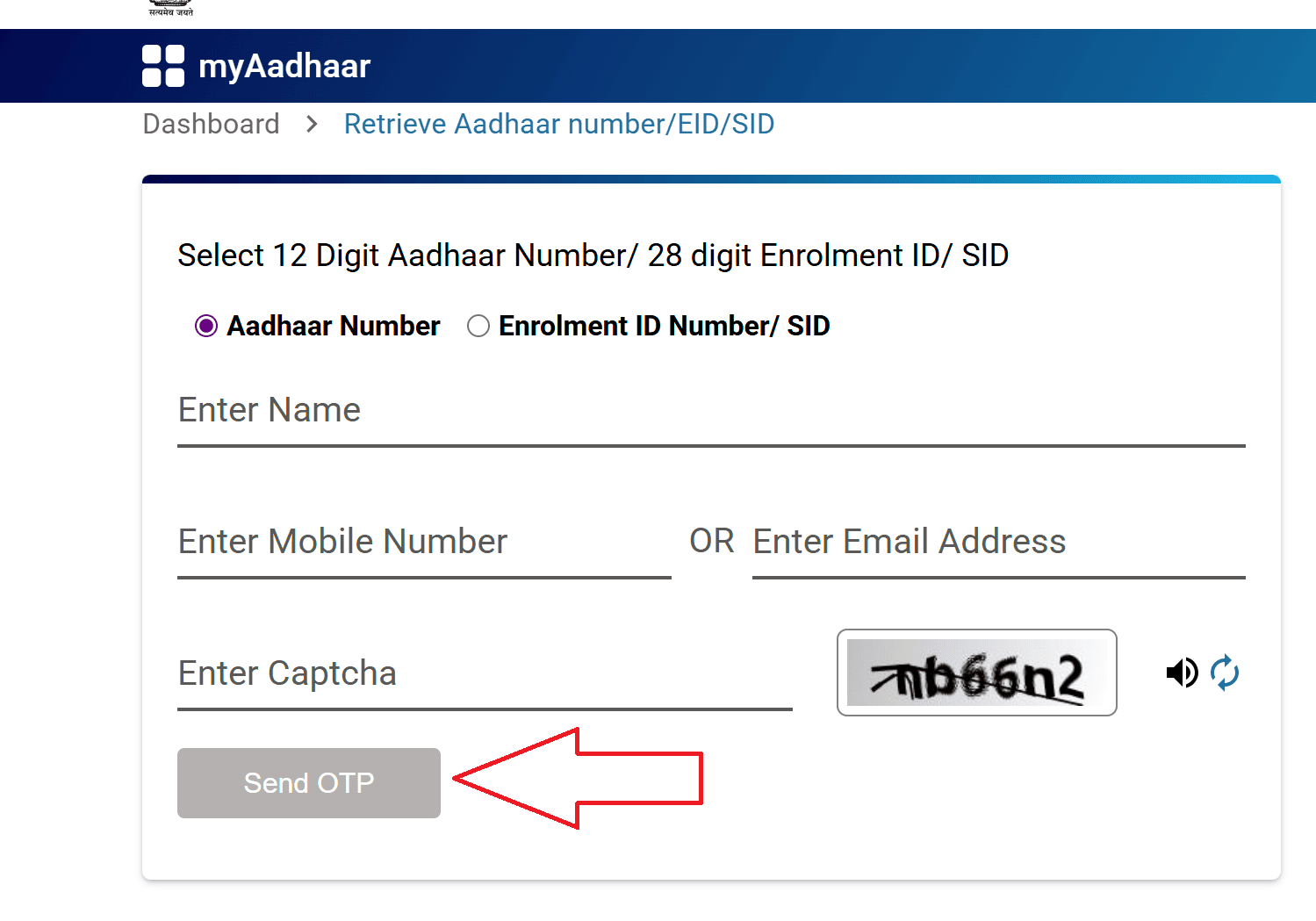
- Your EID or Aadhaar number will be sent to your mobile or email
Once you have the EID, use it to check your status using any of the methods above.
What Each Status Message Means
When you check your status, UIDAI will show you one of these messages. Here's what each one actually means and what you should do:
"Under Processing"
Your request has been received and UIDAI is currently working on it. This means your documents are being verified, your demographic details are being matched, and if applicable, your biometric data quality is being validated. There's nothing for you to do at this stage except wait.
For fresh enrolments, this phase can last anywhere from a few days to 90 days. For update requests, it's usually 7 to 30 days.
"Approved / Completed"
This is what you want to see. It means your Aadhaar has been successfully generated (for new enrolments) or your update has been accepted and applied to your records.
Once you see this, you can go ahead and download your e-Aadhaar from the myAadhaar portal. If you updated any details, the downloaded version will reflect the latest changes. You can also order a PVC card at this point if you want a physical copy.
"Rejected"
This means UIDAI could not approve your request. It could happen for several reasons:
- The document you uploaded was blurry, cropped, or unreadable
- The document didn't match the details you entered (for example, a name mismatch)
- The document type wasn't on the accepted list
- Biometric quality was poor (for enrolments)
- You exceeded the allowed update limit for a specific field (like trying to change your name a third time)
"Aadhaar Generated"
This one shows up specifically for new enrolments. It means your 12-digit Aadhaar number has been created and is now active. You should receive an SMS with your Aadhaar number on your registered mobile. From here, you can download your e-Aadhaar, use it for KYC, or order a PVC card.
How Long Does Each Process Take?
These are approximate timelines based on UIDAI's published guidelines. Actual processing can vary depending on workload and verification complexity.
| Request Type | Typical Timeline |
|---|---|
| New Aadhaar enrolment | 10 to 90 days |
| Address update (online) | 7 to 15 days |
| Name / DOB / Gender update | 7 to 30 days |
| Mobile number update | 15 to 30 days |
| Biometric update | 15 to 60 days (can go up to 90) |
| PVC card delivery | 5 days processing + 5 to 15 days delivery via Speed Post |
| Aadhaar letter by post | Up to 90 days after generation |
If your request has been stuck on "Under Processing" for much longer than these timelines, it's worth calling 1947 or visiting an Aadhaar Seva Kendra to get clarity.
Tracking Your PVC Card Delivery via India Post
Once your PVC card status shows "Dispatched" or "Handed Over to DoP," UIDAI sends the card through India Post's Speed Post service. You'll receive an SMS with a consignment/tracking number.
To track the actual delivery:
- Go to the India Post tracking page at indiapost.gov.in
- Enter the consignment number from the SMS
- Click Search to see the delivery status
Important Notes You Shouldn't Skip
1. Keep your acknowledgement slip safe.
Whether it's a paper slip from the enrolment centre or a digital SRN from an online request, save it somewhere. Without the EID, URN, or SRN, tracking your status becomes much harder.
2. Checking status is completely free.
You don't need to pay anything on any platform, whether it's the myAadhaar portal, mAadhaar app, UMANG, or the 1947 helpline. If any website asks you to pay for a status check, it's a scam.
3. Only use official sources.
The only legitimate sources for Aadhaar services are:
- myaadhaar.uidai.gov.in
- uidai.gov.in
- mAadhaar app (by UIDAI)
- UMANG app (by Government of India)
- Toll-free helpline: 1947
4. Status updates aren't instant.
After submitting a request, don't expect the status to change immediately. Give it at least a few days before checking. Checking repeatedly won't speed up the process.
5. If your request is rejected, act promptly.
Don't let a rejected request sit. Review the reason, correct the issue, and resubmit. Delays in resubmission can cause further problems, especially if you need the updated Aadhaar for a bank or government service.
6. You can check your Aadhaar update history.
If you want to see a log of all the updates you've made to your Aadhaar over the years, the myAadhaar portal has an "Aadhaar Update History" option. Log in with your Aadhaar number and OTP to view it.
7. For persistent issues, escalate properly.
If calling 1947 doesn't resolve your problem, you can file a grievance through the UIDAI website's grievance portal or email help@uidai.gov.in. Include your EID/URN/SRN and a clear description of the issue.
Aadhaar Guides — Related Articles
Detailed guides covering Aadhaar card download, update, enrolment, PAN linking, and more.
Step 1: Open the MyAadhaar Portal · Step 2: Click on "Virtual ID (VID) Generator" · Step 3: Select "Generate VID" or "Retrieve VID" · Step 4: Enter Your Aadhaar Number and Captcha · Step 5: Request and Enter OTP · Step 6: Receive Your 16-Digit VID via SMS.
Aadhaar Complaint & GrievanceIf you're dealing with an Aadhaar problem, whether it's a wrong name, failed fingerprint, this guide walks you through exactly how to file a complaint and what to expect.
Aadhaar Card Download GuideLearn how to download your Aadhaar card online using the UIDAI portal, mAadhaar app, DigiLocker, and other official methods. Step by step, simple and quick.
Aadhaar Card Status GuideCheck your Aadhaar card status online for enrolment, update, and PVC card requests using myAadhaar portal, mAadhaar app, and UMANG app. You can also track your Aadhaar status by calling the UIDAI helpline at 1947.
Aadhaar Card Update GuideLearn how to update your Aadhaar card online and offline using the UIDAI portal, mAadhaar app, and nearest Aadhaar centre. Update your name, address, date of birth, mobile number, email, and photo easily.
My Aadhaar UIDAI Login GuideStep 1: Open the MyAadhaar Portal · Step 2: Enter Your Aadhaar Number · Step 3: Enter the Captcha · Step 4: Request OTP · Step 5: Enter OTP and Login.
Aadhaar Enrolment GuideLearn how to enrol for a new Aadhaar card in 2026. This guide covers required documents, appointment booking, and the step-by-step enrolment process for adults, children, NRIs, and foreign nationals.
Order Aadhaar PVC Card GuideLearn how to order your Aadhaar PVC card online through the myAadhaar portal and mAadhaar app. Check your PVC card order status, track delivery, fees, required documents, etc.
Retrieve Aadhaar Number GuideLearn how to retrieve your lost or forgotten Aadhaar number online and offline using the myAadhaar portal, mAadhaar app, the new Aadhaar app, the UIDAI helpline 1947, or by visiting an Aadhaar Enrolment Centre.
Aadhaar PAN Link GuideLearn how to link your PAN with Aadhaar online, via SMS, and offline using the Income Tax portal. Step-by-step guide covering link status check, late fee payment, name mismatch fix, PAN reactivation, and exemptions.
mAadhaar AppLearn everything about the mAadhaar app. Download, setup, all features explained (VID, TOTP, biometric lock, eKYC, and more), and how it differs from the new Aadhaar app launched in 2026.
New Aadhaar App 2026Learn everything about the new Aadhaar app launched by UIDAI in 2026. Selective sharing, face authentication, offline verification, and mobile number update. Complete setup guide.
Protect Your AadhaarLearn how to protect your Aadhaar from misuse using biometric lock, Virtual ID, masked Aadhaar, Aadhaar Authentication History, and more. Step by step, simple and practical.
Aadhaar Authentication FailedLearn how to fix Aadhaar authentication failures caused by locked biometrics, worn fingerprints, server issues, and data mismatches. Step by step, simple and practical.
Aadhaar Enabled Payment SystemLearn how AePS (Aadhaar Enabled Payment System) lets you withdraw cash, check your balance, and receive government benefits using just your Aadhaar number and fingerprint.