
Aadhaar Card Download Guide
Learn how to download your Aadhaar card online using the UIDAI portal, mAadhaar app, DigiLocker, and other official methods. Step by step, simple and quick.
What is an e-Aadhaar?
Your e-Aadhaar is simply the digital version of your physical Aadhaar card. It's a PDF file, digitally signed by UIDAI, and it contains all the same details - your 12-digit Aadhaar number, name, photo, date of birth, gender, and address.
Here's the thing many people don't realize: the e-Aadhaar is legally as valid as the physical card. According to the Aadhaar Act 2016, e-Aadhaar carries the same legal standing as a physical Aadhaar card and can be used as identity and address proof for government and private services anywhere in India.
You'll get two options when downloading:
- Regular Aadhaar: shows your full 12-digit number
- Masked Aadhaar: hides the first 8 digits (shows only the last 4, like XXXX XXXX 1234)
What You'll Need Before You Start
Before jumping into the download steps, make sure you have these ready:
- Your Aadhaar Number (UID), Enrolment ID (EID), or Virtual ID (VID): any one of these will work
- A registered mobile number: this is the number linked to your Aadhaar with UIDAI, because you'll need to receive an OTP
- A working internet connection
- A PDF reader: to open the downloaded file (Adobe Acrobat, Google Chrome, or even your phone's built-in reader will do)
Method 1: Download from the myAadhaar Portal
This is the most straightforward way and the one most people use.
- Open your browser and go to myaadhaar.uidai.gov.in
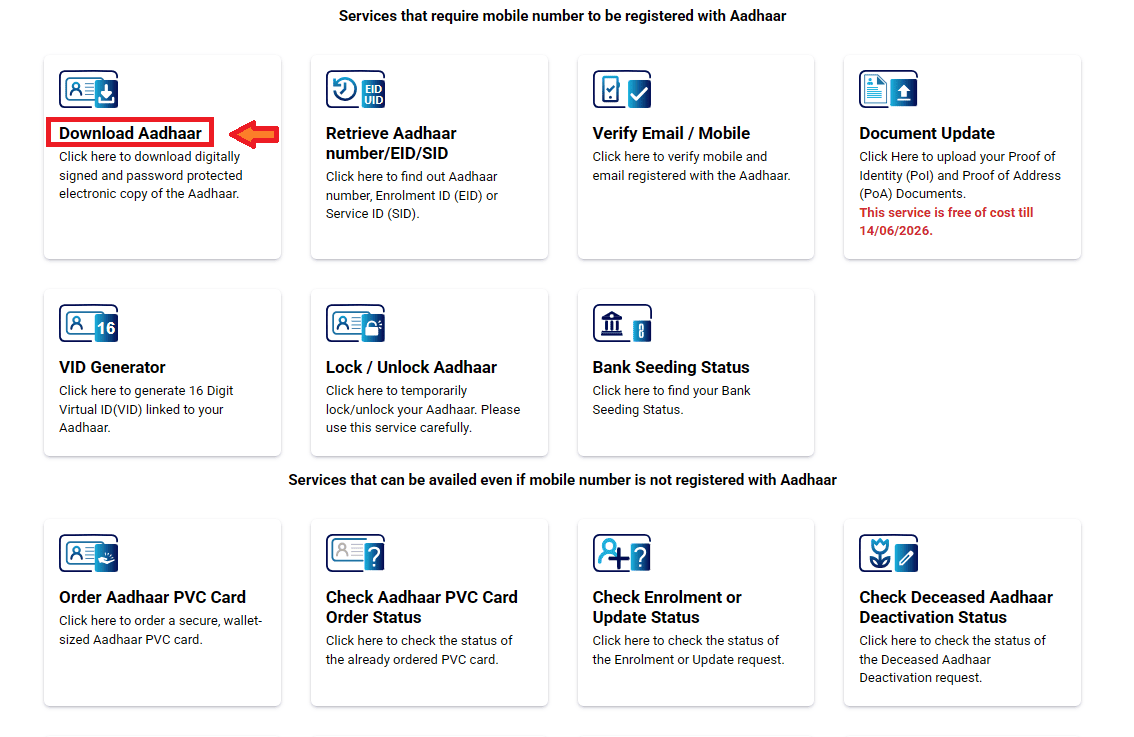
- Click on "Download Aadhaar" on the homepage
- Choose how you'd like to verify - enter your Aadhaar Number, Enrolment ID, or Virtual ID
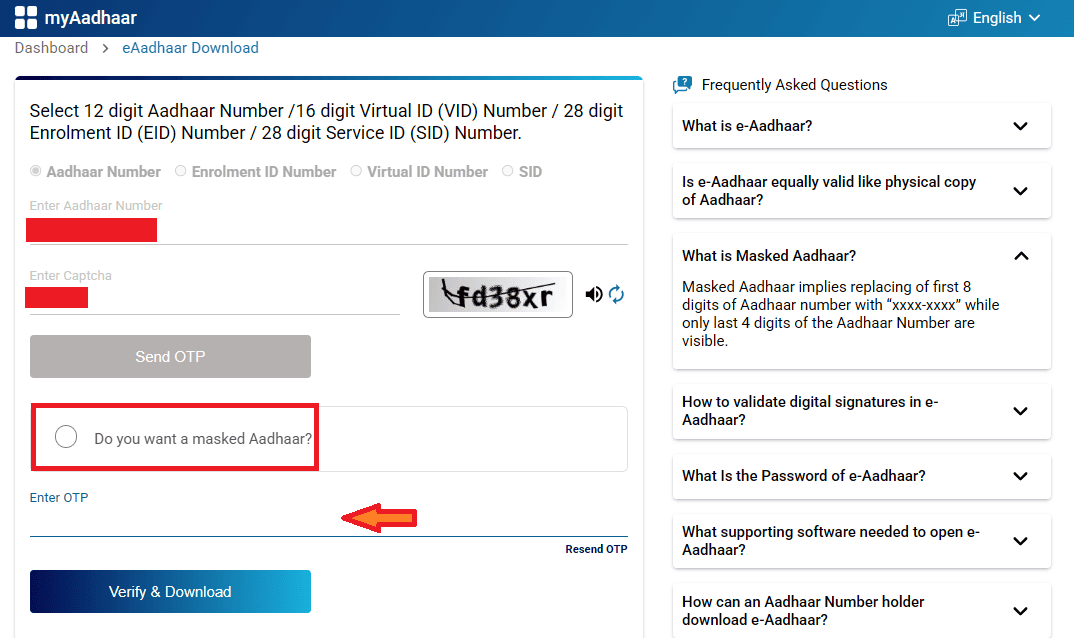
- Fill in the captcha and hit "Send OTP"
- You'll receive a one-time password on your registered mobile - enter it
- Choose between Regular Aadhaar or Masked Aadhaar
- Click "Verify & Download"
Just so you know, if you've made any recent changes to your Aadhaar details, your downloaded e-Aadhaar will automatically have the updated information.
Method 2: Download Using the mAadhaar App
If you prefer doing things on your phone, the mAadhaar app is a solid option. It's the official UIDAI app, available on both Android and iOS.
- Download mAadhaar from the Google Play Store or Apple App Store
- Open the app and pick your language
- Log in with your registered mobile number and verify via OTP
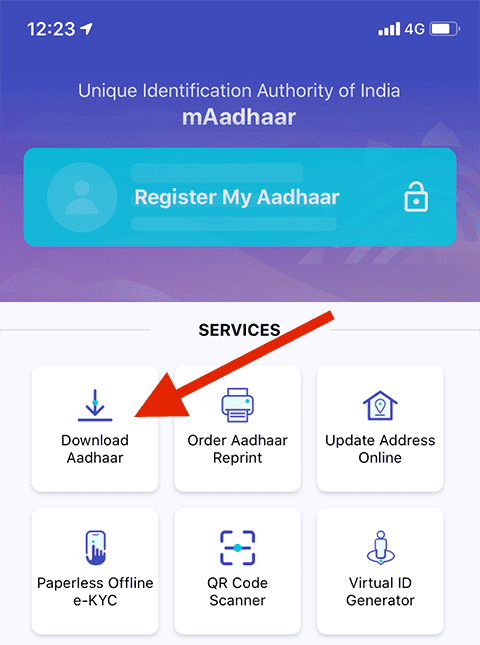
- On the dashboard, tap "Download Aadhaar" under the "Get Aadhaar" section
- Pick Regular or Masked Aadhaar
- Enter your Aadhaar Number, EID, or VID along with the captcha
- Request OTP (or use the app's built-in TOTP feature if you've set it up)
- Hit "Verify and Download"
Method 3: Download Through DigiLocker
Already using DigiLocker to store your documents? Then downloading Aadhaar through it is especially convenient since it stays stored in your DigiLocker vault for easy access later.
- Go to digilocker.gov.in or open the DigiLocker app
- Log in using your mobile number, username, or Aadhaar number - verify with OTP
- In the search bar, type "UIDAI" and select it
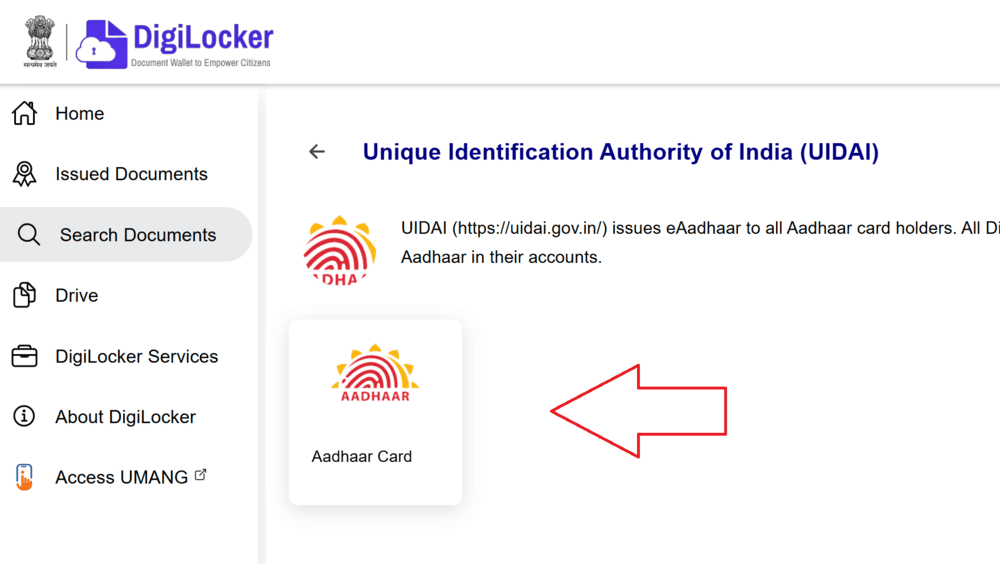
- Choose the "Aadhaar Card" option
- Enter your 12-digit Aadhaar number
- Verify with OTP sent to your registered number
- Your Aadhaar will appear in the "Issued Documents" section - click the download icon to save it

Method 4: Download via the UMANG App
UMANG (Unified Mobile Application for New-age Governance) is a government super-app that bundles a bunch of services, including Aadhaar downloads.
- Install the UMANG app from the Play Store or App Store, or visit web.umang.gov.in
- Register or log in with your mobile number
- Navigate to "Aadhaar Services" under the services section
- Select "Download Aadhaar"
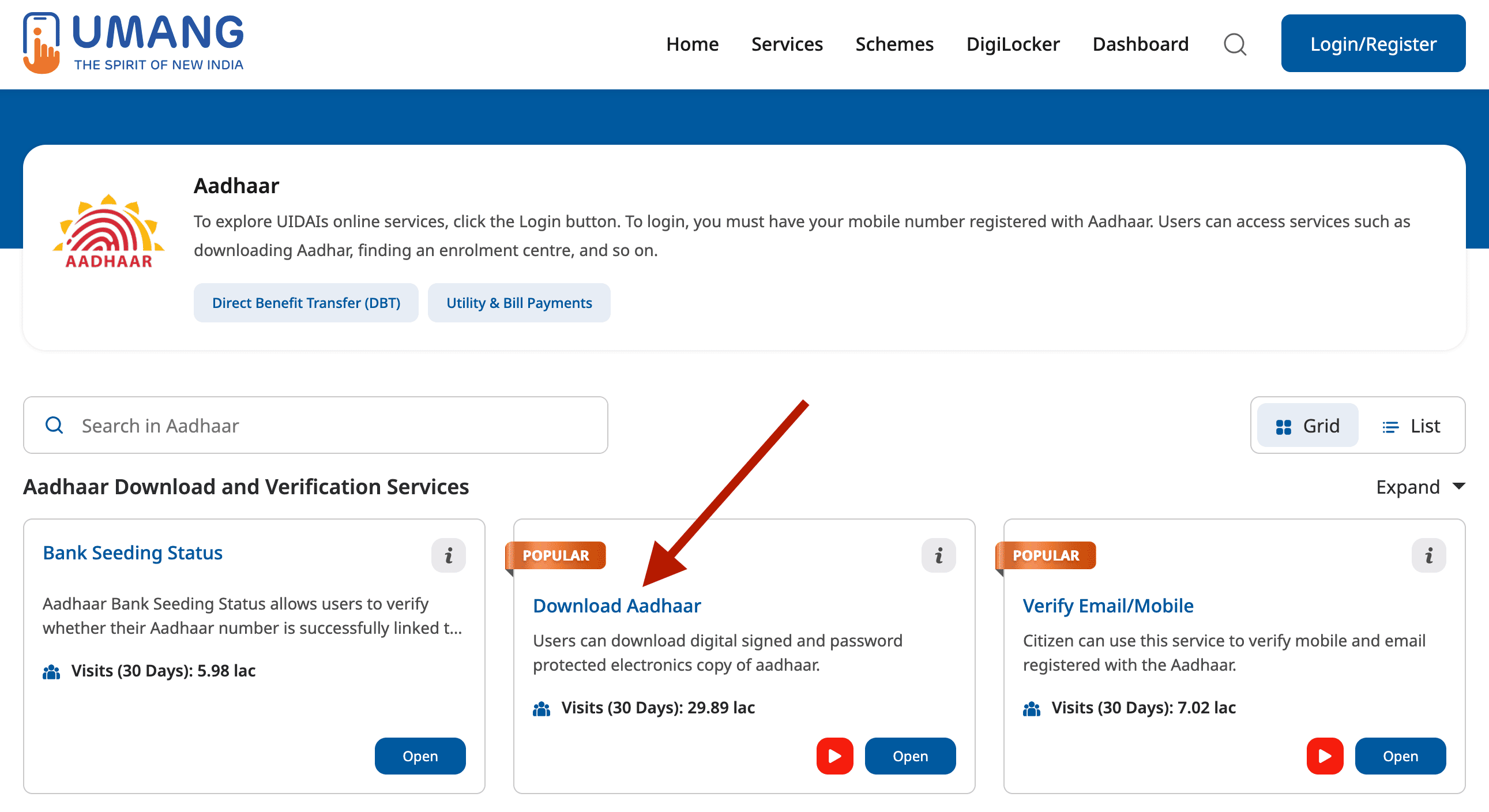
- Enter your Aadhaar number and request OTP
- Verify and download the PDF
Method 5: Download Using Name and Date of Birth
If you can't find or remember your Aadhaar number and you've lost the physical card. Here's how to get it back:
- Visit myaadhaar.uidai.gov.in and click "Retrieve Aadhaar number/EID/SID"
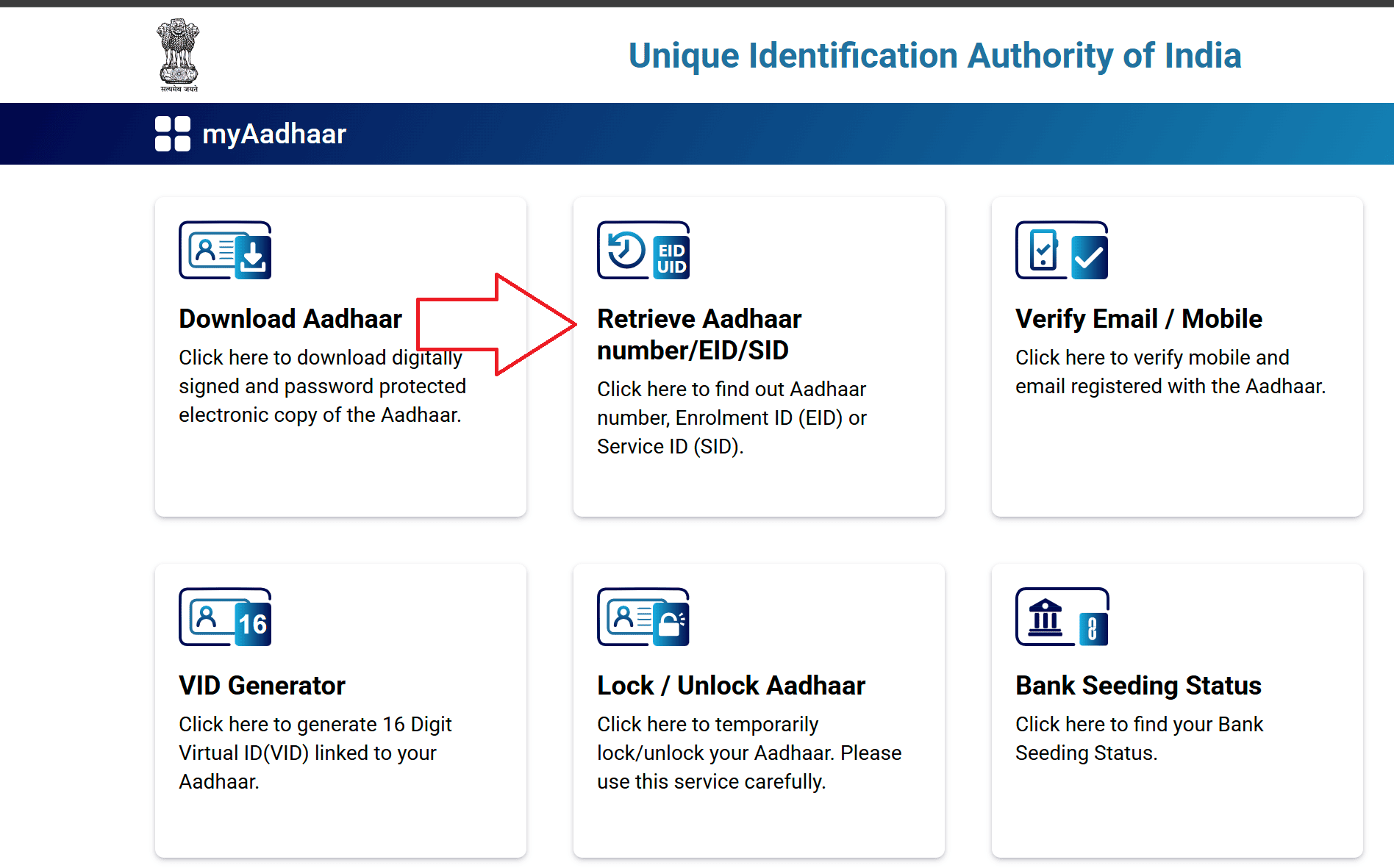
- Enter your full name (as it appears on Aadhaar), your registered mobile number or email, and your date of birth
- Complete the captcha and click "Send OTP"
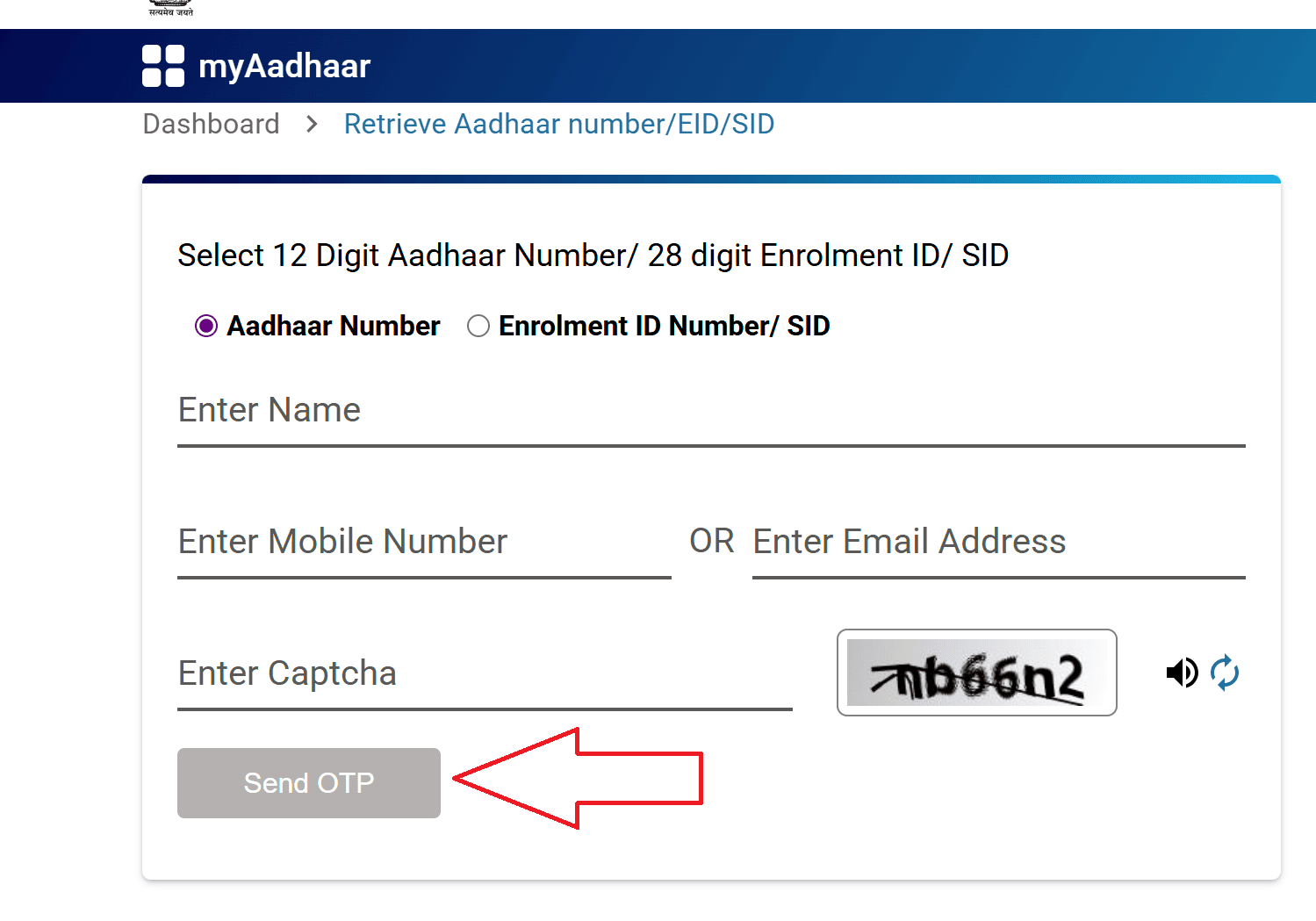
- Enter the OTP you receive
- Your Aadhaar number or Enrolment ID will be sent to your registered mobile/email
- Once you have your number, go back to Method 1 and download your e-Aadhaar.
Method 6: Download without a Registered Mobile Number
This is the one scenario where you can't do things fully online. UIDAI requires OTP verification for every download, and without a linked mobile number, there's no way to receive that OTP.
- Find the nearest Aadhaar Seva Kendra (ASK) using the UIDAI locator at bhuvan.nrsc.gov.in/aadhaar.
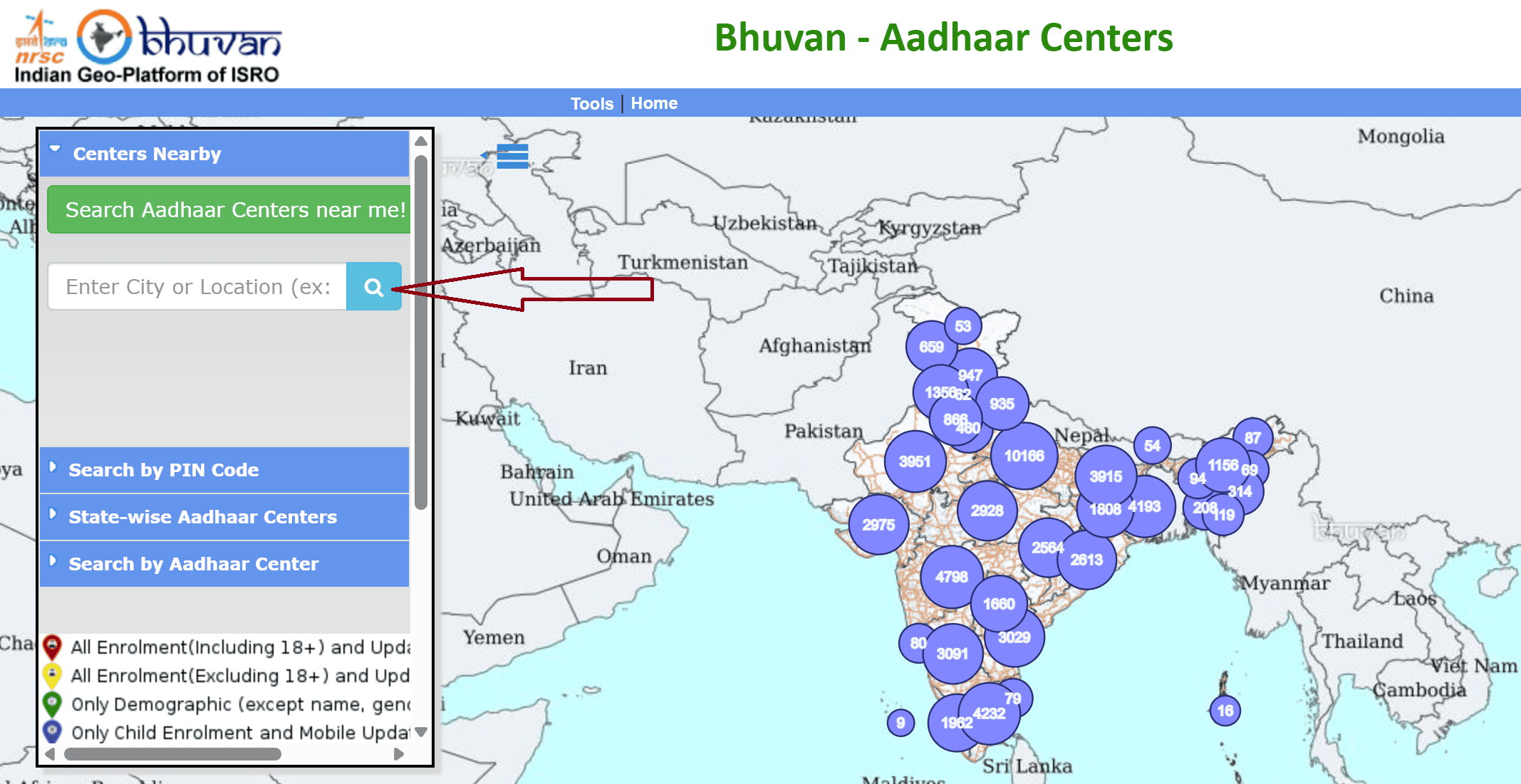
- Visit in person and carry a valid ID proof (PAN card, voter ID, passport, etc.)
- They'll verify your identity using biometric authentication (fingerprint or iris scan)
- The center can then download and print your Aadhaar for you
Method 7: Download Using the New Aadhaar App
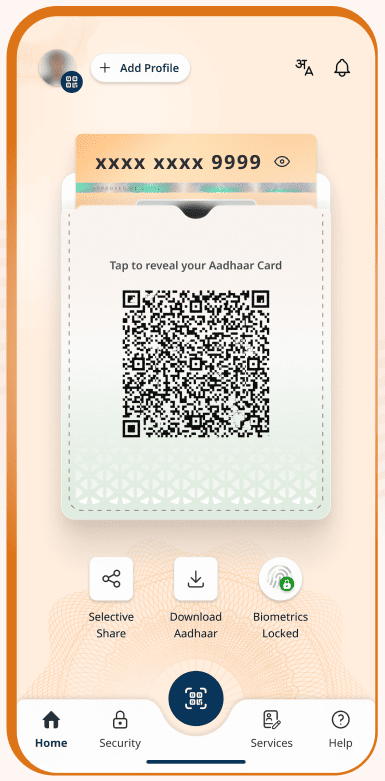
In January 2026, UIDAI launched an entirely new app called "Aadhaar". It's different from the older mAadhaar app. Think of it as a digital identity wallet rather than just a download tool.
Step 1: Open the Google Play Store or Apple App Store on your phone.
Step 2: Search for "Aadhaar" and look for the app published by UIDAI.
Step 3: Tap Install and wait for the download to complete.
Step 4: Enter your Aadhaar-linked mobile number and complete OTP verification.
Step 5: The app will prompt you to set up Face Authentication.
Step 6: Once set up, your Aadhaar profile loads in a wallet-style interface. You'll see your Aadhaar card displayed with your photo, name, and a secure QR code.
Step 7: Tap the "Download Aadhaar" button located between the "Selective Share" and "Biometrics Lock/Unlock" options.
Step 8: You will be prompted to choose between "Masked Aadhaar" and "Unmasked Aadhaar". Select your preferred option and tap the Download button.
Which Download Method Should You Use?
With so many options available, here's a quick comparison to help you pick the right method based on your situation.
| Method | Need Registered Mobile? | Works on Phone? | Stores Permanently? | Best For |
|---|---|---|---|---|
| MyAadhaar Portal | Yes | Yes (browser) | No, re-download each time | Quick one-time download on any device |
| mAadhaar App | Yes | Yes (app) | Yes, stays in app | Regular access on your phone, offline use |
| DigiLocker | Yes | Yes (app/web) | Yes, saved in vault | Long-term storage, no re-downloading needed |
| UMANG App | Yes | Yes (app/web) | No | If you already use UMANG for other govt services |
| Name + DOB | Yes | Yes | No | When you've forgotten your Aadhaar number |
| Without Mobile | No (biometric at centre) | No | Centre prints it | Mobile number not linked or lost |
| New Aadhaar App | Yes (Face Auth) | Yes (app) | Yes, wallet-style | Newer phones with face auth, selective sharing |
How to Open Your e-Aadhaar PDF (The Password)
This is where a lot of people get stuck. The downloaded PDF is password-protected, and the password format is:
Here are some examples to make it clearer:
| Name on Aadhaar | Birth Year | Password |
|---|---|---|
| Amit Verma | 1992 | AMIT1992 |
| Neha Gupta | 1997 | NEHG1997 |
| Vikram Singh | 1985 | VIKS1985 |
| Pooja | 2000 | POOJ2000 |
| R.K. Sharma | 2000 | R.K.2000 |
A few things to keep in mind:
- The name must match exactly what's on your Aadhaar
- If your name has fewer than 4 characters (like "Jai"), just use whatever letters are there
- Special characters like periods in initials (R.M.) are included as-is
- If the password isn't working, double-check your name spelling and birth year in UIDAI's records
Download Masked Aadhaar
A masked Aadhaar hides the first 8 digits of your number, showing only the last 4 (e.g., XXXX-XXXX-1098 instead of 9876-5432-1098). This way, when you submit a copy for KYC, hotel check-ins, or any other verification, no one gets access to your full Aadhaar number.
How to Download Masked Aadhaar
The process is the same as downloading a regular e-Aadhaar. Go to myaadhaar.uidai.gov.in, click "Download Aadhaar," enter your details and request OTP. The only difference is : before you verify the OTP, check the box that says "Do you want a masked Aadhaar?" Then enter the OTP and click "Verify and Download."
You can also download masked Aadhaar through the mAadhaar app, New Aadhaar App, and DigiLocker, following a similar process.
e-Aadhaar vs Physical Aadhaar vs PVC Card vs mAadhaar Profile
People get confused between all the different "versions" of Aadhaar. Here's what each one actually is and when to use it.
| Type | What It Is | Cost | Validity | Best Use Case |
|---|---|---|---|---|
| e-Aadhaar (PDF) | Downloadable PDF from MyAadhaar portal, digitally signed by UIDAI | Free | Same as physical Aadhaar, no expiry | Print it out for KYC, bank accounts, govt forms. Keep digital copy on phone |
| Physical Aadhaar Letter | Paper letter mailed to your address after enrolment | Free (delivered via India Post) | Valid forever (unless details change) | Original copy for safekeeping at home |
| PVC Aadhaar Card | Plastic, wallet-sized card with hologram and security features | Rs. 75 | Valid forever | Carrying in wallet daily, durable and waterproof |
| mAadhaar Profile | Your Aadhaar stored digitally inside the mAadhaar app | Free | Valid as long as app is installed and profile is active | Quick verification on your phone — show QR code or share eKYC |
| New Aadhaar App Profile | Digital wallet-style Aadhaar in UIDAI's new 2026 app | Free | Valid as long as app is active | Selective sharing, face authentication, modern interface |
Important Notes
1. Only use official websites and apps.
There are dozens of fake "Aadhaar download" websites out there. Stick to these official sources:
- myaadhaar.uidai.gov.in
- uidai.gov.in
- mAadhaar app (by UIDAI)
- DigiLocker (by Government of India)
- UMANG app (by Government of India)
2. The e-Aadhaar reflects your latest details.
If you've recently updated your name, address, or photo, the downloaded version will show the updated information. No need to wait for a new physical card.
3. You can download it as many times as you want.
There's no limit. Download it today, lose the file, download it again tomorrow. it's always available.
4. Keep your Aadhaar number private.
This is why the Masked Aadhaar option exists. Whenever you need to share your Aadhaar for non-critical purposes (rental agreements, job applications, gym memberships), use the masked version. Reserve the full-number version for government services and banks that specifically need it.
5. Update your mobile number periodically.
If you change your phone number, make sure to update it with UIDAI. A registered mobile number is essential for almost every Aadhaar service.
Troubleshooting: Common Aadhaar Download Problems
I have helped hundreds of readers troubleshoot their Aadhaar download issues over email and comments. Here are the problems that come up again and again, and what actually works to fix them.
OTP Not Received
This is the #1 problem, and it's almost always one of these three things:
- Your mobile number isn't linked. Go to myaadhaar.uidai.gov.in → "Verify Email/Mobile Number" and check. One of my readers spent two hours retrying before realising his old Jio number was still linked, he'd switched to Airtel months ago but never updated it with UIDAI.
- DND is blocking it. Telecom providers sometimes classify UIDAI's OTP as a promotional message. Dial 1909 from your number and disable DND. A reader from Pune told us this fixed his issue instantly after three days of frustration.
- Server is overloaded. The UIDAI portal gets slammed between 10 AM and 2 PM on weekdays. Try early morning (before 8 AM) or late night (after 10 PM). We've personally tested this OTPs that take 5+ minutes during the day arrive in under 10 seconds at night.
- Quick fix most people don't know about: If you have the mAadhaar app installed, use TOTP instead of OTP. Open the app → tap "TOTP" → it generates an 8-digit code that works for 30 seconds. Enter this on the portal instead of waiting for SMS. It doesn't depend on mobile network at all.
If your number genuinely isn't linked, there's no online workaround visit your nearest Aadhaar Seva Kendra with an ID proof. The mobile update is free until 14 June 2026.
Downloaded PDF Shows Old Details
You updated your address last week, the status shows "Completed," but the downloaded Aadhaar still shows your old address.
This happens because UIDAI's download database takes 24-48 hours to sync after an update is processed. Wait a couple of days and download again. If you're using the mAadhaar app, tap "Aadhaar Sync" first to pull the latest data.
I had a reader who panicked thinking her address update had failed, turns out she just downloaded too soon. Two days later, it showed the correct address.
e-Aadhaar Password Not Working
The password is: first 4 letters of your name in CAPITALS + birth year (YYYY). Sounds simple, but people trip up because:
- The name must match what's on Aadhaar, not what you go by. If your Aadhaar says "MOHAMMED IRFAN" but you typed "MOHD," it won't work. The password would be MOHA + year, not MOHD.
- Initials and dots count. For "P. KUMAR," the first 4 characters are P.KU (the dot is a character).
- Short names use fewer letters. For "RAJ" born in 1990, the password is just RAJ1990 — no extra characters needed.
- Wrong birth year on Aadhaar. If your Aadhaar has an incorrect DOB that you haven't corrected yet, use the year that's currently on record, not your actual birth year.
One of the funniest issues I have come across: a reader couldn't open his e-Aadhaar for days. Turned out his name was updated from "SURESH" to "SURESH KUMAR" a year ago, so the password changed from SURE+year to SURE+year, same in this case, but he was typing "SURK" thinking the last name mattered. It doesn't. It's always the first 4 letters of the full name string, which starts with your first name.
Download Button Not Responding After OTP
You entered the OTP, clicked "Verify & Download"... and nothing happens. The page just sits there. Don't click the button again, it can cause a session conflict. Wait 30 seconds. If nothing happens:
- Check your internet speed. A slow connection can cause the server to time out silently
- If the page is completely frozen, don't hit the back button (you'll lose the session). Close the tab entirely and start fresh with a new OTP
Aadhaar Number Not Found
Before you panic, this usually just means a typo. Double-check all 12 digits.If the number is correct, it could mean:
- Aadhaar hasn't been generated yet. New enrolments take 30 days for children and 60-90 days for adults. Check your enrolment status using your EID first.
- Aadhaar has been deactivated. This is rare, it happens with duplicate enrolments. Call 1947 from your registered number to confirm.
Aadhaar Guides — Related Articles
Detailed guides covering Aadhaar card download, update, enrolment, PAN linking, and more.
Step 1: Open the MyAadhaar Portal · Step 2: Click on "Virtual ID (VID) Generator" · Step 3: Select "Generate VID" or "Retrieve VID" · Step 4: Enter Your Aadhaar Number and Captcha · Step 5: Request and Enter OTP · Step 6: Receive Your 16-Digit VID via SMS.
Aadhaar Complaint & GrievanceIf you're dealing with an Aadhaar problem, whether it's a wrong name, failed fingerprint, this guide walks you through exactly how to file a complaint and what to expect.
Aadhaar Card Download GuideLearn how to download your Aadhaar card online using the UIDAI portal, mAadhaar app, DigiLocker, and other official methods. Step by step, simple and quick.
Aadhaar Card Status GuideCheck your Aadhaar card status online for enrolment, update, and PVC card requests using myAadhaar portal, mAadhaar app, and UMANG app. You can also track your Aadhaar status by calling the UIDAI helpline at 1947.
Aadhaar Card Update GuideLearn how to update your Aadhaar card online and offline using the UIDAI portal, mAadhaar app, and nearest Aadhaar centre. Update your name, address, date of birth, mobile number, email, and photo easily.
My Aadhaar UIDAI Login GuideStep 1: Open the MyAadhaar Portal · Step 2: Enter Your Aadhaar Number · Step 3: Enter the Captcha · Step 4: Request OTP · Step 5: Enter OTP and Login.
Aadhaar Enrolment GuideLearn how to enrol for a new Aadhaar card in 2026. This guide covers required documents, appointment booking, and the step-by-step enrolment process for adults, children, NRIs, and foreign nationals.
Order Aadhaar PVC Card GuideLearn how to order your Aadhaar PVC card online through the myAadhaar portal and mAadhaar app. Check your PVC card order status, track delivery, fees, required documents, etc.
Retrieve Aadhaar Number GuideLearn how to retrieve your lost or forgotten Aadhaar number online and offline using the myAadhaar portal, mAadhaar app, the new Aadhaar app, the UIDAI helpline 1947, or by visiting an Aadhaar Enrolment Centre.
Aadhaar PAN Link GuideLearn how to link your PAN with Aadhaar online, via SMS, and offline using the Income Tax portal. Step-by-step guide covering link status check, late fee payment, name mismatch fix, PAN reactivation, and exemptions.
mAadhaar AppLearn everything about the mAadhaar app. Download, setup, all features explained (VID, TOTP, biometric lock, eKYC, and more), and how it differs from the new Aadhaar app launched in 2026.
New Aadhaar App 2026Learn everything about the new Aadhaar app launched by UIDAI in 2026. Selective sharing, face authentication, offline verification, and mobile number update. Complete setup guide.
Protect Your AadhaarLearn how to protect your Aadhaar from misuse using biometric lock, Virtual ID, masked Aadhaar, Aadhaar Authentication History, and more. Step by step, simple and practical.
Aadhaar Authentication FailedLearn how to fix Aadhaar authentication failures caused by locked biometrics, worn fingerprints, server issues, and data mismatches. Step by step, simple and practical.
Aadhaar Enabled Payment SystemLearn how AePS (Aadhaar Enabled Payment System) lets you withdraw cash, check your balance, and receive government benefits using just your Aadhaar number and fingerprint.