
mAadhaar App
Learn everything about the mAadhaar app. Download, setup, all features explained (VID, TOTP, biometric lock, eKYC, and more), and how it differs from the new Aadhaar app launched in 2026.
What Is the mAadhaar App?
mAadhaar is the official mobile application developed by UIDAI that lets you carry your Aadhaar digitally on your smartphone and access a wide range of Aadhaar-related services. Think of it as a mobile version of the myAadhaar web portal.
Your mAadhaar profile is accepted as a valid ID proof anywhere in India. Under the Aadhaar Act, the digital Aadhaar displayed in the app carries the same legal weight as a physical Aadhaar card or an e-Aadhaar printout.
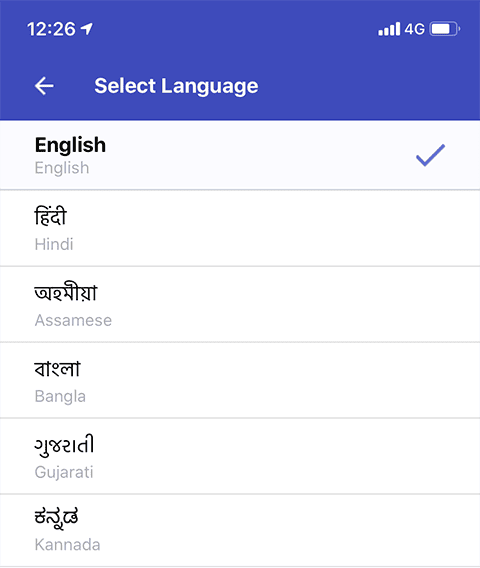
The app is available on both Android (Google Play Store) and iOS (Apple App Store), supports 13 languages (English plus 12 Indian languages including Hindi, Tamil, Telugu, Bengali, Gujarati, Kannada, Malayalam, Marathi, Odia, Punjabi, Assamese, and Urdu), and can be used by anyone with a smartphone.
How to Download and Set Up mAadhaar
Download
Step 1: Open the Google Play Store or Apple App Store on your phone.
Step 2: Search for "mAadhaar" and look for the app published by UIDAI.
Step 3: Tap Install and wait for the download to complete.
Registration
Step 1: Open the app. You'll see a consent form. Tap "I Consent" to proceed.
Step 2: Select your preferred language and tap "Continue".
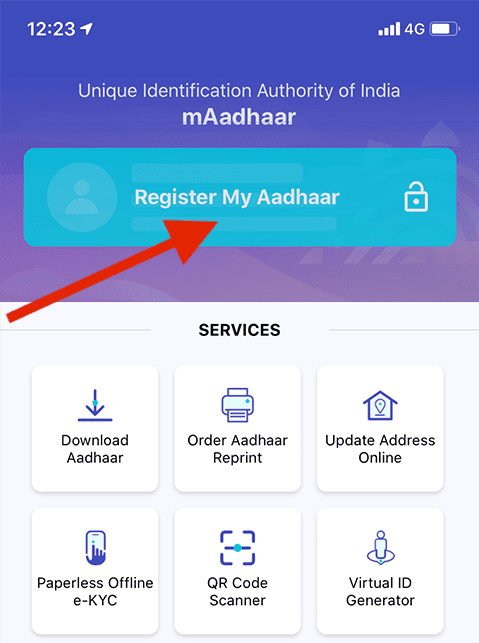
Step 3: Tap "Register my Aadhaar" on the main dashboard.
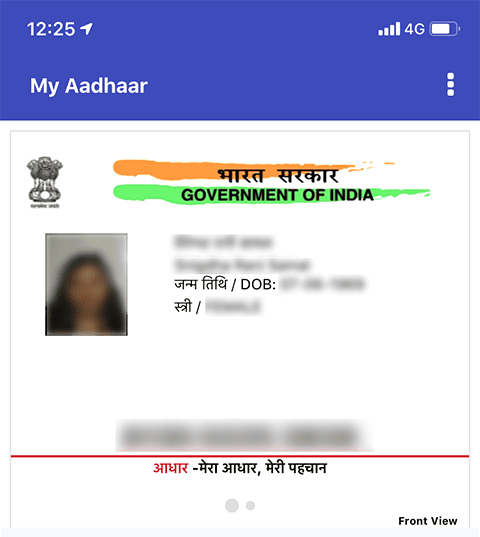
Step 4: Create a 4-digit PIN/password. This will be required every time you access your profile.
Step 5: Enter your 12-digit Aadhaar number and the captcha code displayed on screen. Tap "Request OTP".
Step 6: Enter the OTP sent to your Aadhaar-registered mobile number and tap "Verify".
That's it. Your Aadhaar profile is now registered in the app. You can view your demographic details (name, address, date of birth, gender) and your photo directly from the profile section.
Adding Family Members
You can add up to five Aadhaar profiles on a single device, as long as all those Aadhaar numbers are linked to the same registered mobile number. Each additional profile requires its own OTP verification. This means if you manage Aadhaar for your parents, spouse, or children, they can all be on your phone.
All mAadhaar Features
The app organises its features into three main sections: the Main Service Dashboard (accessible to everyone), Request Status Services (for tracking online requests), and My Aadhaar (a personalised section that requires profile registration).
1. Download Aadhaar (e-Aadhaar)
You can download a digital copy of your Aadhaar directly from the app. This generates the same e-Aadhaar PDF that you'd get from the myAadhaar portal, a password-protected, digitally signed document that's legally valid everywhere.
You can download it using your Aadhaar number, Virtual ID (VID), or Enrolment ID (EID). You can also choose to download a masked Aadhaar, which shows only the last four digits of your Aadhaar number. It is useful when you want to share your identity without revealing the full number.
2. Generate Virtual ID (VID)
The Virtual ID is a temporary, revocable 16-digit number that maps to your Aadhaar. You can share this VID instead of your actual 12-digit Aadhaar number for authentication and e-KYC purposes. The agency performing the verification gets a UID token. They can verify your identity, but they can never derive your actual Aadhaar number from the VID.
To generate a VID in mAadhaar:
Step 1: Log in to the app and go to "Generate Virtual ID."
Step 2: Enter your Aadhaar number and the captcha code.
Step 3: Tap "Request OTP" and enter the OTP.
Step 4: Tap "Generate VID." Your 16-digit VID will be displayed on screen and sent to your registered mobile number.
You can also generate a VID via SMS by sending "GVID [last 4 digits of Aadhaar]" to 1947 from your registered mobile number.
3. TOTP Generation
TOTP stands for Time-based One-Time Password. It's an automatically generated temporary password created by the app itself, which you can use instead of waiting for an SMS-based OTP.
This is genuinely useful in two situations: when you have poor mobile network coverage and can't receive SMS, or when OTP delivery is delayed (which happens more often than anyone would like to admit).
To generate a TOTP:
Step 1: Log in to the app with your 4-digit PIN.
Step 2: Under the My Aadhaar section, tap "Get TOTP."
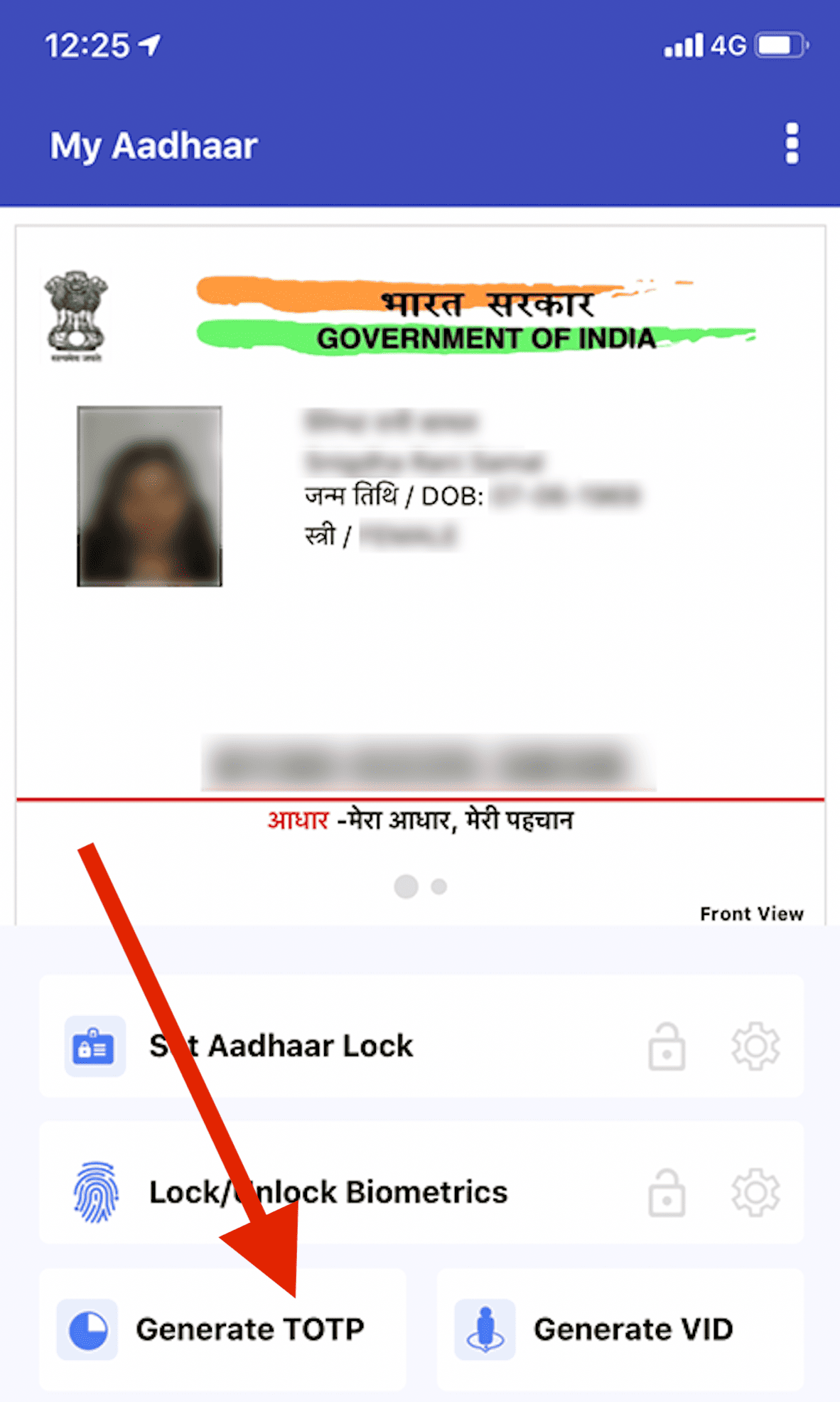
Step 3: A temporary password appears on screen. Use it immediately, it's time-sensitive and expires quickly.
4. Biometric Lock/Unlock
This lets you lock your biometric data (fingerprints and iris scans) stored in UIDAI's database. When biometrics are locked, nobody can use your fingerprints or iris for Aadhaar authentication, not even you. This prevents misuse if someone somehow tries to authenticate using your biometrics without your knowledge.
To lock biometrics in mAadhaar:
Step 1: Log in and go to the My Aadhaar section.
Step 2: Tap on "Lock/Unlock Biometrics".
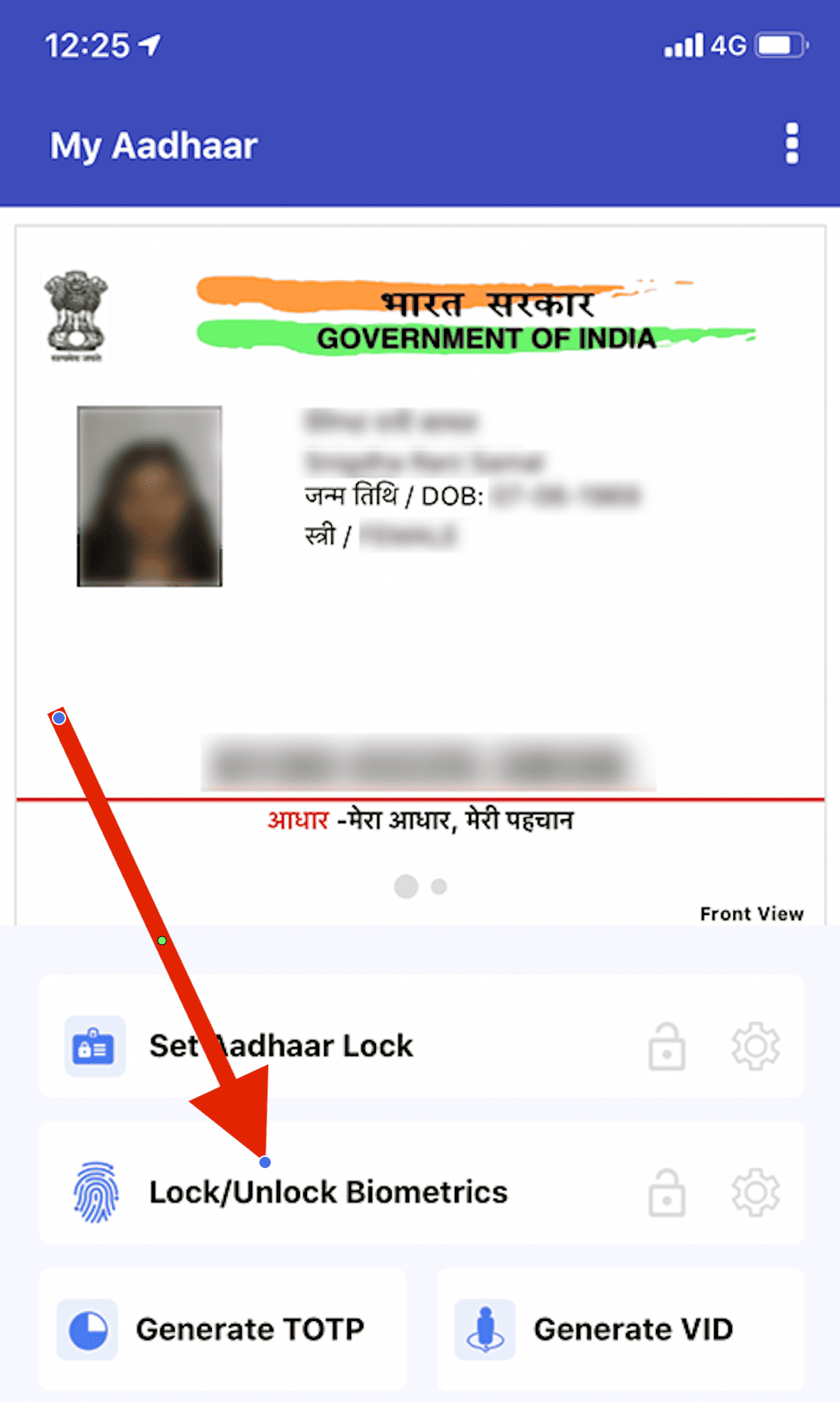
Step 3: Authenticate with OTP.
Step 4: Enable the biometric lock.
You can also disable the locking system entirely if you decide you don't want it anymore.
5. Aadhaar Number Lock/Unlock
Separate from biometric locking, this feature lets you lock your actual 12-digit Aadhaar number. When locked, your Aadhaar number cannot be used for authentication at all. You'd use your VID instead.
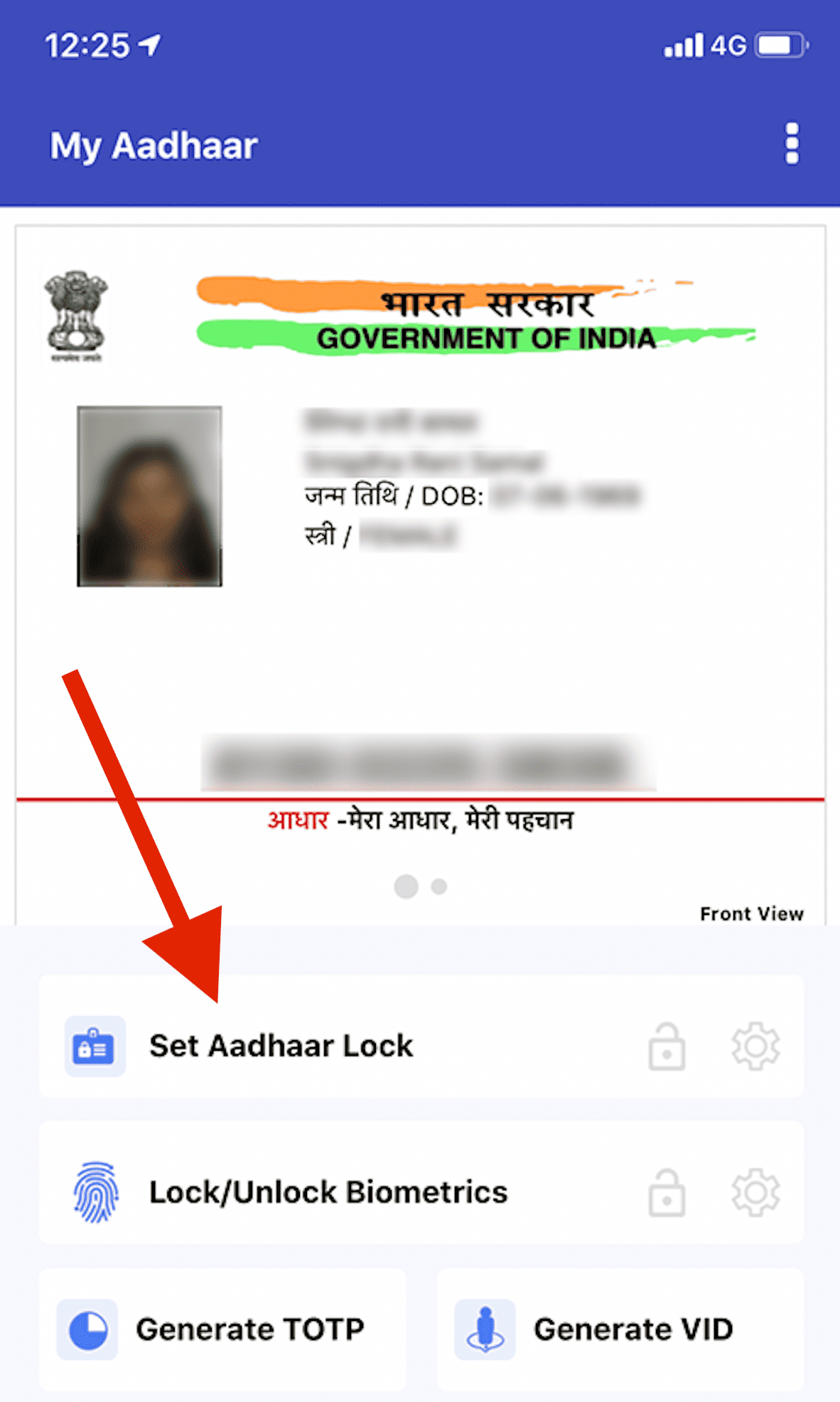
This is for people who want the strongest level of protection, they lock the Aadhaar number, generate a VID, and use only the VID for all services. Even if someone gets hold of your Aadhaar number, it's useless for authentication when locked.
6. Address Update
You can update your address directly through the mAadhaar app. You'll need to upload a valid Proof of Address document (utility bill, bank statement, passport, etc.), authenticate via OTP, and pay a fee of ₹50.
7. Download Offline eKYC
The offline eKYC feature lets you download a digitally signed XML file containing your Aadhaar details. This file can be shared with service providers for offline identity verification without connecting to UIDAI's central database.
The XML file includes your name, address, photo, gender, date of birth, a hash of your registered mobile number and email, and a reference ID that contains only the last four digits of your Aadhaar number. The full Aadhaar number is not included.
You set a "share code" (essentially a password) when downloading the file, and only someone with that share code can open the XML. This makes it a secure way to share your identity for paperless KYC at banks, telecom companies, and other agencies.
8. Show QR Code / Scan QR Code
Your mAadhaar profile includes a QR code that contains your encrypted Aadhaar data. You can show this QR code to any authorised entity for identity verification. They scan it, and your details are verified instantly.
The app also lets you scan QR codes on physical Aadhaar cards or printed e-Aadhaar documents to verify whether they're genuine.
9. Verify Aadhaar
This feature lets you check whether any Aadhaar number is active and valid. You enter the 12-digit number, and the app tells you if it's a legitimate, active Aadhaar. Useful if you receive someone else's Aadhaar details and want to confirm they're real before proceeding with a transaction.
10. Verify Email/Mobile
You can verify whether a specific email address or mobile number is linked to an Aadhaar number. This doesn't reveal the actual email or number. It just confirms a yes/no match. Useful for organisations that need to verify contact details as part of their onboarding process.
11. Retrieve UID/EID
Forgot your Aadhaar number? Lost your Enrolment ID? The app lets you retrieve both. You authenticate using your registered mobile number, and the UID (Aadhaar number) or EID (Enrolment ID) is sent to your phone.
12. Order PVC Aadhaar Card
You can order a physical PVC Aadhaar card directly from the app. The card costs ₹75 (updated from the earlier ₹50) and is delivered to your registered address. The PVC card is a durable, wallet-sized card with your photo, details, and a secure QR code. More practical for daily use than the standard Aadhaar letter.
13. Request Address Validation Letter
If you've moved to a new address but don't have a conventional Proof of Address document, UIDAI can send a verification letter to your new address. You request this through the app, and a letter with an OTP is mailed to the new address. Once you receive it and enter the OTP, your address is updated.
14. Book Appointment at Aadhaar Seva Kendra
The app lets you schedule appointments at your nearest Aadhaar Seva Kendra (ASK) or Enrolment Centre. This avoids the walk-in queue and saves time, especially for services that require a physical visit (like biometric updates or mobile number changes at a centre).
15. Locate Nearest Enrolment Centre
A simple but handy feature. The app helps you find the nearest Aadhaar Enrolment Centre based on your location or by entering your state, district, and area.
16. Track Request Status
Submitted an address update? Ordered a PVC card? The app lets you check the status of any online request using your Update Request Number (URN) or order reference number.
17. View Authentication History
You can see a record of when and where your Aadhaar was used for authentication. The app shows you which agencies verified your identity, when the authentication happened, and what type of authentication was used (biometric, OTP, or demographic). This is important for spotting any unauthorised use of your Aadhaar.
18. View Update History
Similar to authentication history, this shows all the updates that have been made to your Aadhaar over time: address changes, demographic corrections, biometric updates, etc.
19. Aadhaar Services via SMS (Offline)
Even without an internet connection, you can access certain Aadhaar services by SMS from within the app. This includes locking/unlocking biometrics, generating VIDs, and checking Aadhaar status. The SMS commands are sent to 1947, UIDAI's official helpline number.
mAadhaar vs New Aadhaar App
| Feature | mAadhaar | Aadhaar App |
|---|---|---|
| Aadhaar Account Management | ||
| Download e-Aadhaar PDF | ✓ | ✗ |
| Generate Virtual ID (VID) | ✓ | ✗ |
| Generate TOTP | ✓ | ✗ |
| Lock / Unlock Aadhaar Number | ✓ | ✗ |
| Offline eKYC Download | ✓ | ✗ |
| Order PVC Aadhaar Card | ✓ | ✗ |
| Track Request / Update Status | ✓ | ✗ |
| Digital Identity & Verification | ||
| Selective Data Sharing (choose fields) | ✗ | ✓ |
| Face Authentication Login | ✗ | ✓ |
| Mobile Number Update from Home | ✗ | ✓ |
| Offline QR Verification (no internet) | ✗ | ✓ |
| Contact Card via QR | ✗ | ✓ |
| Available in Both | ||
| Biometric Lock / Unlock | ✓ | ✓ |
| Address Update | ✓ | ✓ |
| Authentication History | ✓ | ✓ |
| Multi-Profile (up to 5 family members) | ✓ | ✓ |
Troubleshooting Common mAadhaar Issues
| Issue | Solution |
|---|---|
| "OTP not received" | This happens when your mobile number isn't registered with your Aadhaar, or when there's a network delay. Wait a minute before requesting a new OTP. Make sure you're requesting from the number linked to your Aadhaar. |
| "App not working after update" | Clear the app cache (Settings → Apps → mAadhaar → Clear Cache), then restart the app. If that doesn't help, uninstall and reinstall from the Play Store or App Store. |
| "Cannot add profile" | You can only add profiles whose Aadhaar numbers are linked to the same registered mobile number. If the Aadhaar you're trying to add is linked to a different number, it won't work. |
| "Biometric unlock not working" | Remember that biometric unlock is temporary (about 10 minutes). If you unlocked it but took too long, it may have locked again automatically. Unlock it again right before you need the authentication. |
| "Forgot 4-digit PIN" | Go to Settings → Reset Password. You'll need to enter your current password to set a new one. If you've completely forgotten it, you may need to uninstall the app, reinstall it, and register your profile again. |
Important Notes
1. mAadhaar profile is valid ID proof.
Your profile displayed in the app is legally accepted as proof of identity anywhere in India. You don't need to carry a physical card.
2. Only download from official sources.
Always install from Google Play Store or Apple App Store, published by UIDAI. Fake mAadhaar apps have been a persistent problem. If in doubt, visit uidai.gov.in for the official download link.
3. Registered mobile number is mandatory for most features.
Without it, you can only access limited services like ordering a PVC card, verifying Aadhaar, locating centres, and scanning QR codes. All the important features require OTP authentication via your registered number.
4. Form inputs are in English only.
While the app's interface is available in 13 languages, all form fields (name, address, Aadhaar number, etc.) accept only English input. This is due to mobile keyboard limitations for regional languages.
5. TOTP is a lifesaver.
If you're someone who frequently faces delayed or missing OTPs, start using TOTP from the mAadhaar app. It generates a one-time password locally on your device, so network coverage doesn't matter.
6. Sync your profile after updates.
If you've completed an address update or any other change, use the "Sync" feature in the My Aadhaar section to refresh your profile with the latest data from UIDAI's database.
7. The app doesn't work outside India.
mAadhaar and its OTP-based services are designed for use within India only.
Aadhaar Guides — Related Articles
Detailed guides covering Aadhaar card download, update, enrolment, PAN linking, and more.
Step 1: Open the MyAadhaar Portal · Step 2: Click on "Virtual ID (VID) Generator" · Step 3: Select "Generate VID" or "Retrieve VID" · Step 4: Enter Your Aadhaar Number and Captcha · Step 5: Request and Enter OTP · Step 6: Receive Your 16-Digit VID via SMS.
Aadhaar Complaint & GrievanceIf you're dealing with an Aadhaar problem, whether it's a wrong name, failed fingerprint, this guide walks you through exactly how to file a complaint and what to expect.
Aadhaar Card Download GuideLearn how to download your Aadhaar card online using the UIDAI portal, mAadhaar app, DigiLocker, and other official methods. Step by step, simple and quick.
Aadhaar Card Status GuideCheck your Aadhaar card status online for enrolment, update, and PVC card requests using myAadhaar portal, mAadhaar app, and UMANG app. You can also track your Aadhaar status by calling the UIDAI helpline at 1947.
Aadhaar Card Update GuideLearn how to update your Aadhaar card online and offline using the UIDAI portal, mAadhaar app, and nearest Aadhaar centre. Update your name, address, date of birth, mobile number, email, and photo easily.
My Aadhaar UIDAI Login GuideStep 1: Open the MyAadhaar Portal · Step 2: Enter Your Aadhaar Number · Step 3: Enter the Captcha · Step 4: Request OTP · Step 5: Enter OTP and Login.
Aadhaar Enrolment GuideLearn how to enrol for a new Aadhaar card in 2026. This guide covers required documents, appointment booking, and the step-by-step enrolment process for adults, children, NRIs, and foreign nationals.
Order Aadhaar PVC Card GuideLearn how to order your Aadhaar PVC card online through the myAadhaar portal and mAadhaar app. Check your PVC card order status, track delivery, fees, required documents, etc.
Retrieve Aadhaar Number GuideLearn how to retrieve your lost or forgotten Aadhaar number online and offline using the myAadhaar portal, mAadhaar app, the new Aadhaar app, the UIDAI helpline 1947, or by visiting an Aadhaar Enrolment Centre.
Aadhaar PAN Link GuideLearn how to link your PAN with Aadhaar online, via SMS, and offline using the Income Tax portal. Step-by-step guide covering link status check, late fee payment, name mismatch fix, PAN reactivation, and exemptions.
mAadhaar AppLearn everything about the mAadhaar app. Download, setup, all features explained (VID, TOTP, biometric lock, eKYC, and more), and how it differs from the new Aadhaar app launched in 2026.
New Aadhaar App 2026Learn everything about the new Aadhaar app launched by UIDAI in 2026. Selective sharing, face authentication, offline verification, and mobile number update. Complete setup guide.
Protect Your AadhaarLearn how to protect your Aadhaar from misuse using biometric lock, Virtual ID, masked Aadhaar, Aadhaar Authentication History, and more. Step by step, simple and practical.
Aadhaar Authentication FailedLearn how to fix Aadhaar authentication failures caused by locked biometrics, worn fingerprints, server issues, and data mismatches. Step by step, simple and practical.
Aadhaar Enabled Payment SystemLearn how AePS (Aadhaar Enabled Payment System) lets you withdraw cash, check your balance, and receive government benefits using just your Aadhaar number and fingerprint.