
New Aadhaar App 2026
Learn everything about the new Aadhaar app launched by UIDAI in 2026. Selective sharing, face authentication, offline verification, and mobile number update. Complete setup guide.
What Is the new Aadhaar App?
On 28 January 2026, UIDAI launched a completely new Aadhaar app. Not an update to mAadhaar. Not a redesign. A separate, new app built from scratch with a fundamentally different purpose.
Where mAadhaar was designed as a service dashboard - downloading Aadhaar, generating VID, managing updates. The new Aadhaar app is built to be a digital identity wallet. It's designed for the everyday act of proving who you are, with a heavy emphasis on privacy, selective sharing, and offline verification.
Why a New App?
The way people use Aadhaar has evolved, but the verification tools hadn't. Here's a look at what each traditional method gets wrong, and how the new app fixes it:
| Verification Method | The Problem |
|---|---|
| Photocopy | Gets circulated and stored by random agencies - a direct privacy risk |
| Physical Card | Easily lost or damaged; inconvenient to carry everywhere |
| Online Authentication (Biometric/OTP) | Doesn't work without internet connectivity |
The new app resolves all three in one go:
| What the New App Does Differently | |
|---|---|
| Verify from your phone | No photocopies, no physical card needed |
| Works offline | No internet or OTP dependency |
| Hides your Aadhaar number | Verifier never sees it |
| Selective disclosure | You control exactly which details are shared |
New Aadhaar App vs mAadhaar
mAadhaar is for managing your Aadhaar. It handles administrative tasks like downloading your Aadhaar PDF, generating Virtual IDs (VID), generating TOTP, locking/unlocking your Aadhaar number, offline eKYC, scanning QR codes, and verifying Aadhaar validity. Think of it as the backend control panel.
The new Aadhaar app is for using your Aadhaar in daily life. It's a digital identity wallet that lets you carry, show, and selectively share your Aadhaar from your phone. It introduces Face ID authentication, selective data sharing, offline QR verification, a contact card feature, and the ability to update your mobile number without visiting a centre.
How to Download and Set Up the New Aadhaar App
Download
Step 1: Open the Google Play Store or Apple App Store on your phone.
Step 2: Search for "Aadhaar" and look for the app published by UIDAI.
Step 3: Tap Install and wait for the download to complete.
Setup Process
Step 1: Enter your Aadhaar-linked mobile number and complete OTP verification.
Step 2: The app will prompt you to set up Face Authentication.
Step 3: Once set up, your Aadhaar profile loads in a wallet-style interface. You'll see your Aadhaar card displayed with your photo, name, and a secure QR code.
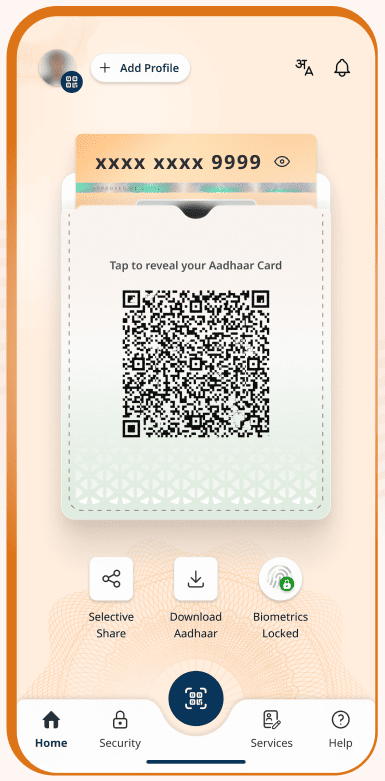
Step 4: You can add up to five Aadhaar profiles on a single device (for family members), as long as those Aadhaar numbers are linked to the same registered mobile number.
Key Features
1. Digital Identity Wallet
The home screen shows your Aadhaar card in a clean, wallet-style layout. Your photo, name, and a digitally signed QR code are displayed. This QR code is encrypted and can be scanned for instant, paperless verification by authorised agencies (banks, government offices, hotels).
2. Selective Share
Traditional Aadhaar verification: whether through a photocopy, an e-Aadhaar PDF, or even a masked Aadhaar; shares your entire document. The verifier sees your name, photo, date of birth, gender, address, and either your full or partial Aadhaar number. Even if they only need to confirm your age, they get everything.
Selective Share changes that completely. Before sharing your details, the app lets you choose exactly which fields to include. You can tick or untick individual data points:
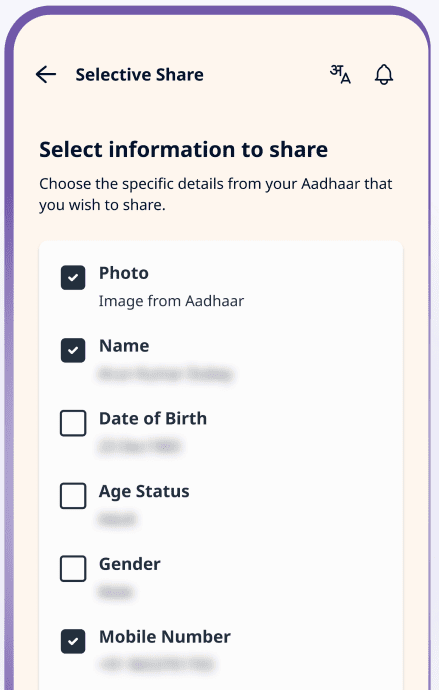
- Photograph
- Name
- Date of birth
- Age status (just confirms whether you're above a certain age, without revealing the actual date)
- Gender
- Address
- Mobile number
So if a movie theatre needs to verify you're over 18, you share only your age status, not your name, address, or anything else. If a hotel needs your name and address for check-in, you share just those two fields.
The shared data is digitally signed by UIDAI, so the verifier can trust it's authentic. But your Aadhaar number is never exposed. The verifying agency doesn't see it, doesn't store it.
This is built to comply with the DPDP Act's data minimisation principle. You share the minimum information required for the purpose at hand.
3. Offline QR Code Verification
The app supports identity verification without an internet connection. This is a big deal for locations with poor connectivity: rural areas, underground facilities, or just places where mobile data is unreliable.
Here's how it works: the requesting entity (a hotel, a bank, a service provider) generates a QR code. You scan that QR code using the new Aadhaar app. The app generates a digitally signed response with your selected credentials, which the entity can verify offline.
No internet required on your end. No real-time connection to UIDAI's central database. The verification happens locally using the encrypted, digitally signed data stored on your device.
This also means UIDAI's servers aren't involved in every single transaction. It reduces the load on the system and removes the dependency on server uptime.
4. Face Authentication
The app uses face verification as a primary authentication method. When you set up the app, your face is captured and linked to your Aadhaar profile. After that, you can use Face ID to log in, authorise actions, and verify your presence.
This is particularly useful in two scenarios:
- Proof of presence: If a service provider needs to confirm that you are the actual Aadhaar holder, physically present (not just someone holding your phone), they can request face verification through the app. Your face is matched against UIDAI's records in real time.
- As a fallback for fingerprints: For people whose fingerprint authentication fails (elderly, manual labourers, people with skin conditions), face authentication provides an alternative that doesn't require iris scanners or special hardware.
5. Update Mobile Number from Home
Until now, updating your Aadhaar-linked mobile number required a physical visit to an Aadhaar Enrolment Centre. If you changed your phone number and didn't update it with Aadhaar, you'd lose access to OTP-based services, biometric unlocking, VID generation, essentially everything.
The new app lets you update your mobile number directly from your phone. Here's the process:
- Step 1: Open the new Aadhaar app and log in.
- Step 2: Go to the "Services" section on the home screen and select "Mobile Number Update".
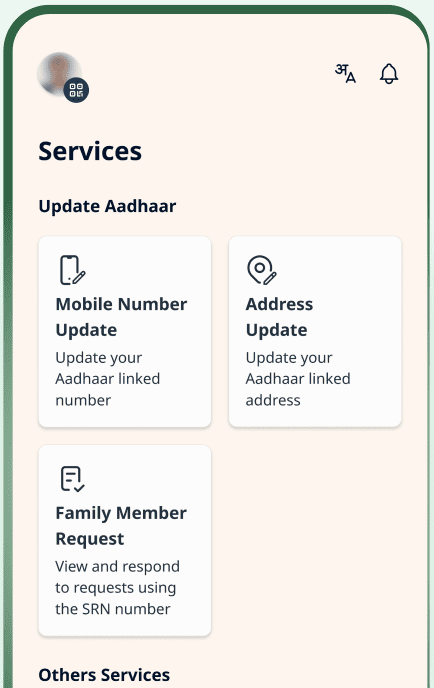
- Step 3: Enter your new mobile number.
- Step 4: Verify your identity using OTP (on your old number, if active) and Face Authentication.
- Step 5: Pay the applicable fee of ₹75.
- Step 6: Submit the request. The update typically reflects in UIDAI's records within 15 to 30 days.
6. Address Update
Similar to the mobile number update, you can now update your address through the app without visiting an Aadhaar centre. You'll need to upload supporting documents (Proof of Address), and the update is processed digitally.
7. One Family, One App
The app supports up to five Aadhaar profiles on a single device. This means a parent can manage Aadhaar profiles for their children, elderly parents, or spouse; all from one phone.
Each profile addition requires OTP authentication from the registered mobile number linked to that Aadhaar. Once added, you can switch between profiles and access each person's Aadhaar features individually.
8. QR-Based Contact Card
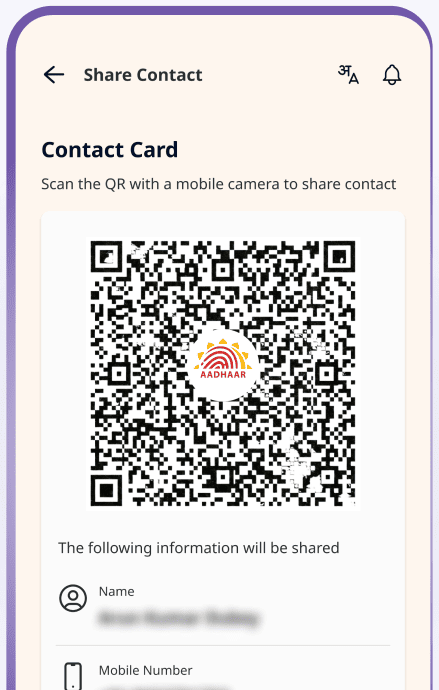
A smaller but genuinely useful feature. The app lets you generate a QR-based contact card that you can share with others. Instead of dictating your phone number or sharing a screenshot of your Aadhaar, you show a QR code that contains only the contact details you want to share. The other person scans it, and your details are saved on their phone.
9. Biometric Lock/Unlock and Authentication History
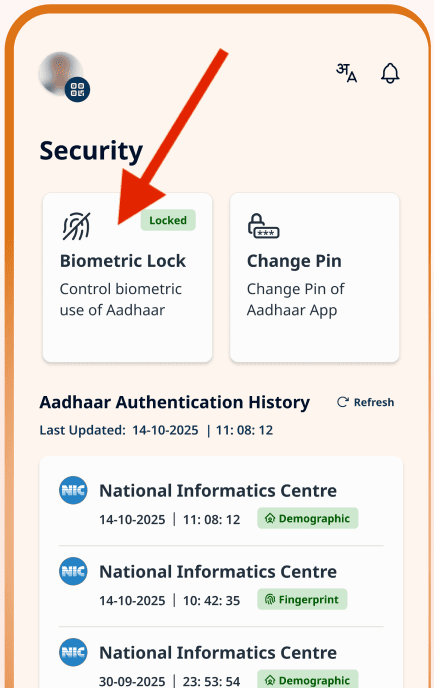
These features carry over from mAadhaar but are now accessible with a single tap. You can lock or unlock your biometrics instantly, and view your complete Aadhaar authentication history. When, where, and by whom your Aadhaar was used for verification.
10. Auto Logout on Lost Phone
UIDAI has built in a security measure: if your phone is lost or stolen, you're automatically logged out of your Aadhaar account on that device. This prevents someone who finds or steals your phone from accessing your Aadhaar profile.
Real-World Use Cases
The new app is designed for situations where you currently hand over a photocopy or show a physical card. Here's what it looks like in practice:
Hotel check-in: Instead of handing over a photocopy of your Aadhaar at the front desk, you scan the hotel's QR code using the app. You share only your name, photo, and address. No Aadhaar number is revealed.
Age verification: At a movie theatre, event, or liquor store that needs to confirm you're above a certain age. You share only your age status. The verifier gets a yes/no confirmation that you meet the age requirement, nothing else.
Hospital visits: For visitor verification or patient admission, the hospital scans your app's QR code and receives only the necessary details - name and photo for visitors, name and address for admission.
Gig worker verification: Platforms that onboard delivery partners, drivers, or freelancers can verify identity through the app without collecting and storing Aadhaar numbers.
Bank or government office: For any in-person verification, you show the app's QR code instead of a physical card. The QR code is digitally signed by UIDAI, making it verifiable and tamper-proof.
Important Notes
1. Only download from official app stores.
The app is available on Google Play Store and Apple App Store, published by UIDAI. Do not download from third-party websites, APK mirrors, or unofficial sources. Fake Aadhaar apps have been a recurring problem.
2. You need a registered mobile number.
Like every other Aadhaar service, the new app requires your mobile number to be linked to your Aadhaar for OTP verification. If your number isn't linked, you'll need to visit an Aadhaar Enrolment Centre first to register it or use the new app's mobile number update feature if your old number is still active.
3. The app doesn't store your Aadhaar number with verifiers.
When you share data through Selective Share, the verifying agency receives only the fields you selected, digitally signed by UIDAI. Your 12-digit Aadhaar number is not part of the shared data.
4. Biometric updates still require a physical visit.
The app handles mobile number and address updates digitally, but any changes to fingerprints, iris scans, or your photograph must be done in person at an Enrolment Centre.
5. mAadhaar isn't going away (for now).
UIDAI has confirmed that both apps will coexist. If you're comfortable with mAadhaar for administrative tasks, keep it. But for everyday identity verification, the new app is the better tool.
6. Face Authentication requires a decent camera.
The Face ID feature uses your phone's front camera. It works on most modern smartphones, but very old devices with low-resolution cameras might have issues with face capture quality.
Aadhaar Guides — Related Articles
Detailed guides covering Aadhaar card download, update, enrolment, PAN linking, and more.
Step 1: Open the MyAadhaar Portal · Step 2: Click on "Virtual ID (VID) Generator" · Step 3: Select "Generate VID" or "Retrieve VID" · Step 4: Enter Your Aadhaar Number and Captcha · Step 5: Request and Enter OTP · Step 6: Receive Your 16-Digit VID via SMS.
Aadhaar Complaint & GrievanceIf you're dealing with an Aadhaar problem, whether it's a wrong name, failed fingerprint, this guide walks you through exactly how to file a complaint and what to expect.
Aadhaar Card Download GuideLearn how to download your Aadhaar card online using the UIDAI portal, mAadhaar app, DigiLocker, and other official methods. Step by step, simple and quick.
Aadhaar Card Status GuideCheck your Aadhaar card status online for enrolment, update, and PVC card requests using myAadhaar portal, mAadhaar app, and UMANG app. You can also track your Aadhaar status by calling the UIDAI helpline at 1947.
Aadhaar Card Update GuideLearn how to update your Aadhaar card online and offline using the UIDAI portal, mAadhaar app, and nearest Aadhaar centre. Update your name, address, date of birth, mobile number, email, and photo easily.
My Aadhaar UIDAI Login GuideStep 1: Open the MyAadhaar Portal · Step 2: Enter Your Aadhaar Number · Step 3: Enter the Captcha · Step 4: Request OTP · Step 5: Enter OTP and Login.
Aadhaar Enrolment GuideLearn how to enrol for a new Aadhaar card in 2026. This guide covers required documents, appointment booking, and the step-by-step enrolment process for adults, children, NRIs, and foreign nationals.
Order Aadhaar PVC Card GuideLearn how to order your Aadhaar PVC card online through the myAadhaar portal and mAadhaar app. Check your PVC card order status, track delivery, fees, required documents, etc.
Retrieve Aadhaar Number GuideLearn how to retrieve your lost or forgotten Aadhaar number online and offline using the myAadhaar portal, mAadhaar app, the new Aadhaar app, the UIDAI helpline 1947, or by visiting an Aadhaar Enrolment Centre.
Aadhaar PAN Link GuideLearn how to link your PAN with Aadhaar online, via SMS, and offline using the Income Tax portal. Step-by-step guide covering link status check, late fee payment, name mismatch fix, PAN reactivation, and exemptions.
mAadhaar AppLearn everything about the mAadhaar app. Download, setup, all features explained (VID, TOTP, biometric lock, eKYC, and more), and how it differs from the new Aadhaar app launched in 2026.
New Aadhaar App 2026Learn everything about the new Aadhaar app launched by UIDAI in 2026. Selective sharing, face authentication, offline verification, and mobile number update. Complete setup guide.
Protect Your AadhaarLearn how to protect your Aadhaar from misuse using biometric lock, Virtual ID, masked Aadhaar, Aadhaar Authentication History, and more. Step by step, simple and practical.
Aadhaar Authentication FailedLearn how to fix Aadhaar authentication failures caused by locked biometrics, worn fingerprints, server issues, and data mismatches. Step by step, simple and practical.
Aadhaar Enabled Payment SystemLearn how AePS (Aadhaar Enabled Payment System) lets you withdraw cash, check your balance, and receive government benefits using just your Aadhaar number and fingerprint.