
Retrieve Aadhaar Number Guide
Learn how to retrieve your lost or forgotten Aadhaar number online and offline using the myAadhaar portal, mAadhaar app, the new Aadhaar app, the UIDAI helpline 1947, or by visiting an Aadhaar Enrolment Centre.
Retrieve Lost or Forgotten Aadhaar Number Methods 2026
If you have lost your Aadhaar card or forgotten your 12-digit Aadhaar number, don’t worry. Unique Identification Authority of India (UIDAI) provides simple ways to recover it. The method you choose depends on one important factor.
| Your Situation | Best Method | Cost | Time |
|---|---|---|---|
| Mobile/email registered with Aadhaar | Method 1 (myAadhaar Portal) | Free | 1–2 minutes |
| mAadhaar app already set up | Method 2 (mAadhaar App) | Free | 1–2 minutes |
| New Aadhaar app already set up | Method 3 (New Aadhaar App) | Free | Instant |
| No registered mobile/email, but have phone access | Method 4 (Call 1947 Helpline) | Free | 10–15 minutes |
| No registered mobile, don't remember exact name spelling | Method 5 (Visit Enrolment Centre) | ₹30 | 15–30 minutes |
Before You Start: UID vs EID
When you go to retrieve your Aadhaar, UIDAI will ask whether you want to retrieve your UID or your EID. Here's the difference:
UID (Unique Identification Number) is your 12-digit Aadhaar number. This is what most people are looking for when they say they've lost their Aadhaar.
EID (Enrolment Identification Number) is a 28-digit number that was generated when you first enrolled for Aadhaar (or when you submitted an update). It's printed on the acknowledgement slip you received at the enrolment centre. You'd typically need this if your Aadhaar hasn't been generated yet or if you want to check the status of an enrolment.
Method 1: Retrieve Online via myAadhaar Portal (If Mobile/Email is Registered)
This is the fastest and easiest method. It works if your current mobile number or email address is registered with UIDAI.
- Open your browser and go to myaadhaar.uidai.gov.in
- Click on the "Retrieve Aadhaar number/EID/SID" option.
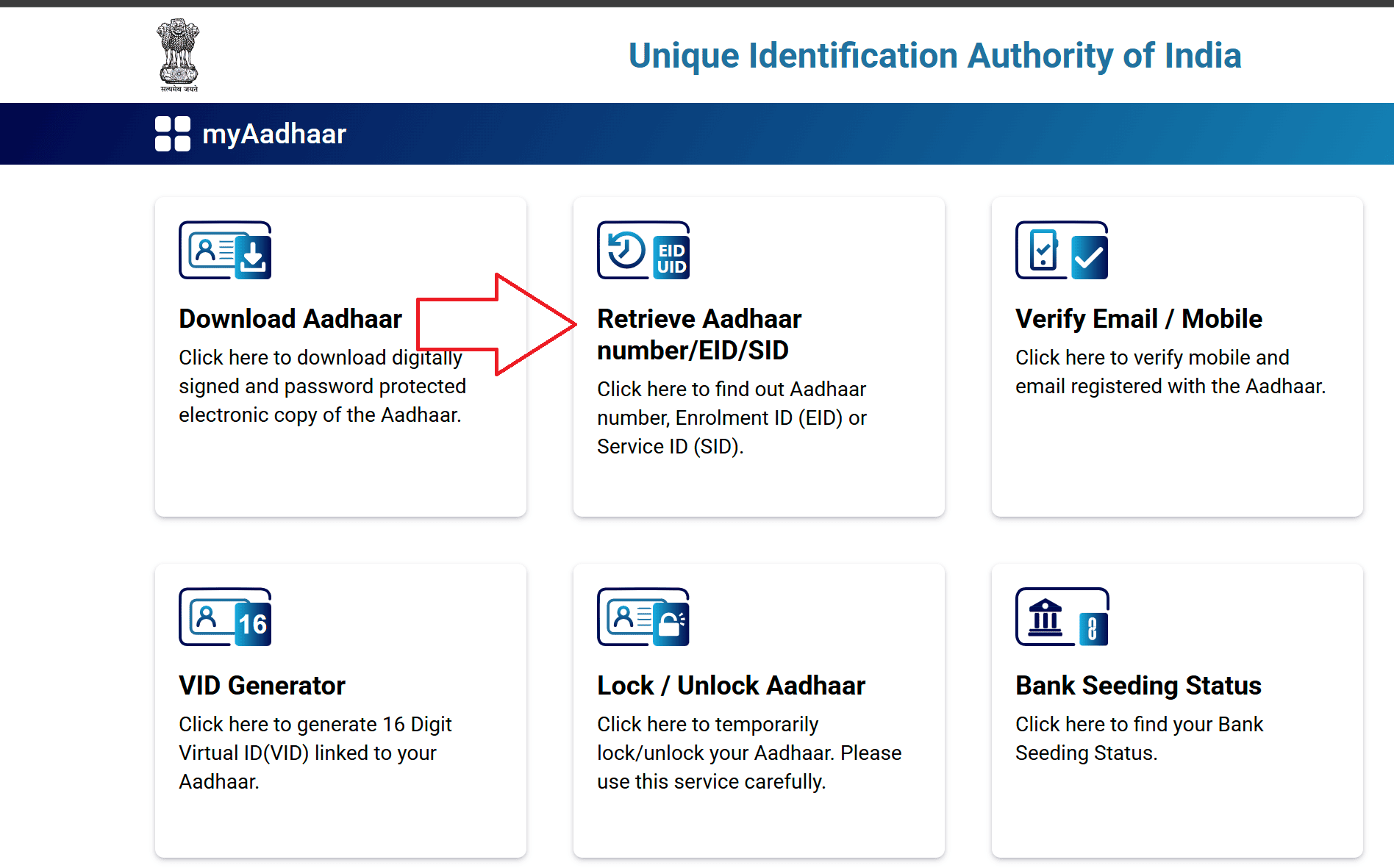
- Select what you want to retrieve: Aadhaar Number (UID) or Enrolment ID Number/SID.
- Enter your full name exactly as it appears on your Aadhaar.
- Enter your registered mobile number or email address.
- Complete the captcha verification.
- Click "Send OTP." You'll receive an OTP on your registered mobile number or email.
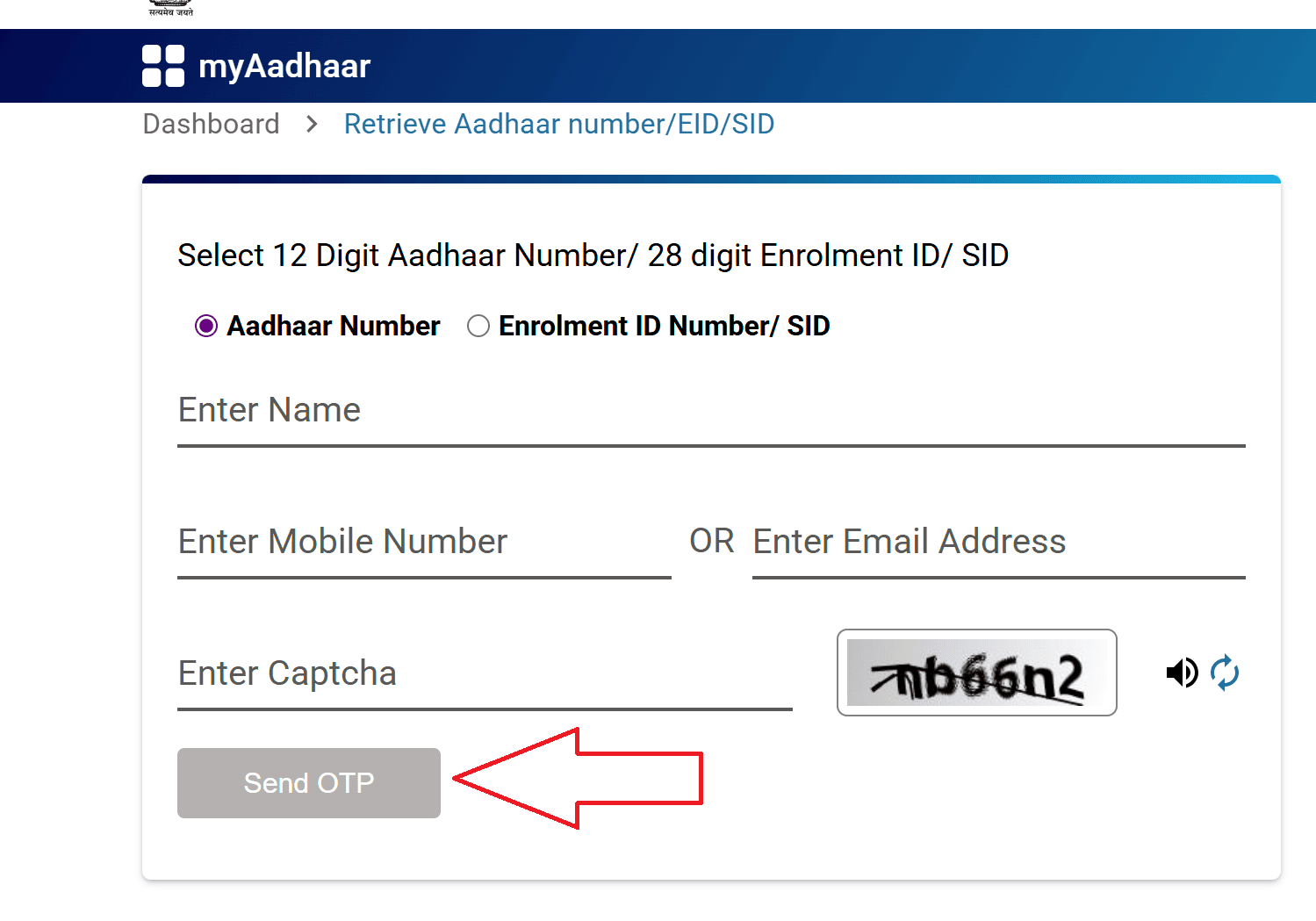
- Enter the OTP and submit.
- Your Aadhaar number (or EID) will be sent to your registered mobile number via SMS.
What If It Says "No Match Found"?
- Your name doesn't match exactly. Try different variations. If your Aadhaar has "MOHAMMED" but you typed "MOHAMMAD," it won't match. Also check for initials, middle names, and spelling differences.
- The mobile number or email you entered isn't the one registered with UIDAI. You may have changed your number since you last updated Aadhaar.
- Your Aadhaar was enrolled with a different name (maiden name, for example).
If you can't get the name to match or don't remember which mobile/email is linked, skip to Method 4 or Method 5.
Method 2: Retrieve via mAadhaar App
If you already have the mAadhaar app installed and your profile is set up, you can retrieve your Aadhaar number directly from the app.
- Open the mAadhaar app on your phone.
- Log in using your 4-digit PIN.
- Tap on "Retrieve EID/UID" from the menu.
- Select whether you want to retrieve your Aadhaar Number (UID) or Enrolment Number (EID).
- An OTP will be sent to your registered mobile number.
- Enter the OTP. Your Aadhaar number or EID will be displayed and also sent via SMS.
Method 3: Retrieve via the New Aadhaar App (2026)
UIDAI launched a completely new Aadhaar app in January 2026 (separate from mAadhaar). It uses face authentication and allows you to manage up to five family profiles on one device.
If you've already set up your profile on the new Aadhaar app, your Aadhaar number is stored right there in the app. Just open it, authenticate with Face ID or your PIN, and your Aadhaar details are visible on the home screen in a digital wallet format.
If you haven't set up the new app yet, you'll need your Aadhaar number and registered mobile to create a profile, so this method works best as a preventive measure. Set up the app now so you always have your number accessible.
Method 4: Retrieve by Calling UIDAI Helpline 1947 (If Mobile is NOT Registered)
If your mobile number is not registered with Aadhaar (or you've lost access to that number), you can still retrieve your Aadhaar number by calling the UIDAI helpline. This is a two-stage process.
Stage 1: Get Your EID
- Call 1947 (toll-free from any Indian mobile or landline).
- Select your preferred language.
- The helpline executive will ask you for your demographic details: your name, date of birth, gender, address, PIN code, or any other details as per your Aadhaar enrolment.
- The executive searches the UIDAI database. If a match is found, they will provide your EID (Enrolment ID) over the phone.
- Note down the EID carefully.
Stage 2: Get Your Aadhaar Number Using the EID
- Call 1947 again.
- After selecting your language, press 1 (for request status).
- Then press 2 (for Aadhaar enrolment status).
- The IVR system will ask you to enter the EID you received in Stage 1.
- Enter your date of birth and PIN code as prompted.
- If the details match, the IVR will read out your Aadhaar number.
Method 5: Retrieve at an Aadhaar Enrolment Centre (If Nothing Else Works)
If none of the above methods work for you, if you don’t remember your name as it appears on your Aadhaar, or if your mobile number and email are not registered, you need to use this method to retrieve your Aadhaar number.
- Find the nearest Aadhaar Seva Kendra (ASK) using the UIDAI locator at bhuvan.nrsc.gov.in/aadhaar. Visit the centre in person.
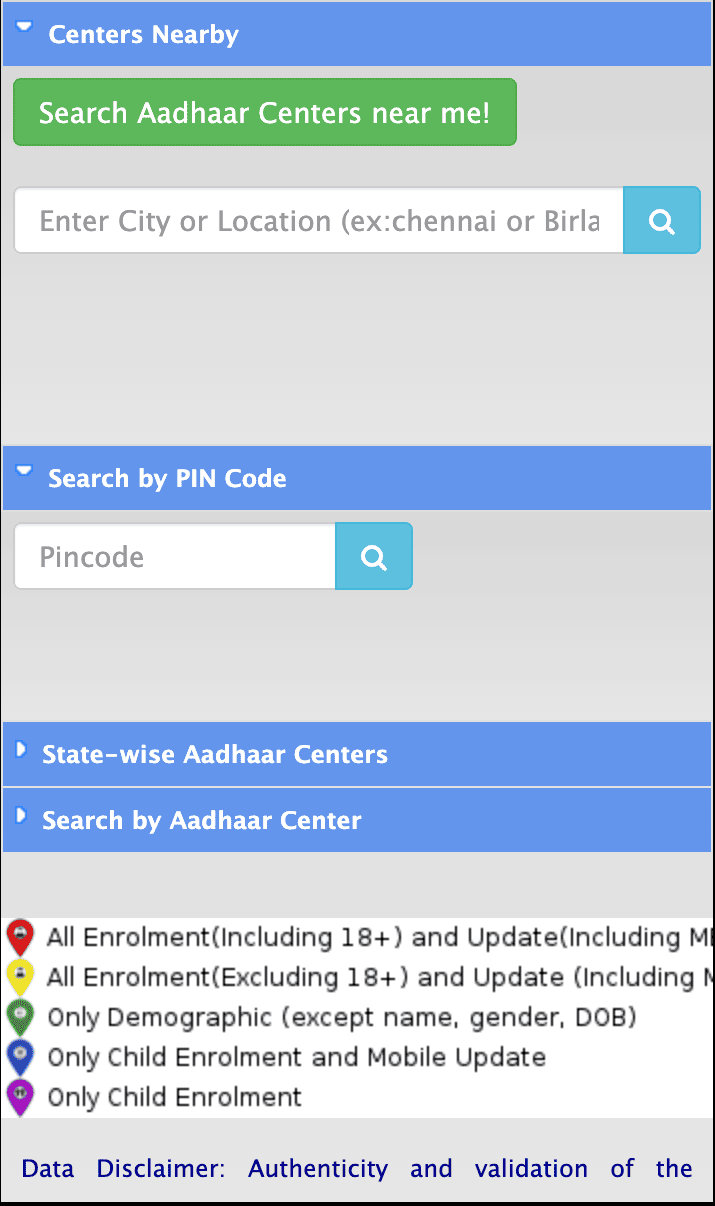
- Tell the operator you need to retrieve your lost Aadhaar number using the "Print Aadhaar" service.
- Provide your demographic details: name, gender, district or PIN code as per your Aadhaar enrolment. If the search returns multiple records (common with names like Rajesh Kumar), the operator may ask for additional details like year of birth, care-of (father/spouse name), state, etc.
- Authenticate with your biometrics. Place your finger on the scanner or provide an iris scan. The system matches your biometrics against the UIDAI database.
- Once your identity is verified, the operator will retrieve your Aadhaar record and provide you a printout of your e-Aadhaar letter.
Method 6: Check Your Existing Documents and Linked Services
Before going through any of the above methods, it's worth checking a few places where your Aadhaar number might already be recorded:
Bank passbook or statement: If your Aadhaar was linked with your bank account, your bank may have the number on file. Some banks print it on the passbook. You can also check through internet banking or visit the branch and ask.
Income Tax portal: If you've linked your Aadhaar with PAN, log into the Income Tax e-filing portal at incometax.gov.in. Your Aadhaar number (or at least a masked version) may be visible in your profile.
DigiLocker: If you've ever added your Aadhaar to DigiLocker, it's stored there. Log into digilocker.gov.in using your registered mobile number. Your Aadhaar should appear under "Issued Documents" if it was fetched from UIDAI previously.
Old e-Aadhaar PDFs: Search your email inbox for "e-Aadhaar" or "UIDAI." If you've ever downloaded your e-Aadhaar, you might have received a confirmation or saved the PDF somewhere. Also check your phone's downloads folder and cloud storage (Google Drive, iCloud, etc.).
Aadhaar enrolment slip: The acknowledgement slip you received when you first enrolled contains your EID. With that EID, you can retrieve your Aadhaar number using the myAadhaar portal or the 1947 helpline.
Old photocopies: Check your files for any photocopies you may have submitted to banks, telecom providers, employers, landlords, or educational institutions.
SIM provider: Your mobile network operator may have your Aadhaar on file if you used it for KYC when buying your SIM. However, telecom companies generally won't hand over your Aadhaar number directly. They can confirm if a particular number is linked, but they won't reveal the full 12 digits for privacy reasons.
What to Do After You Retrieve Your Number
Once you have your Aadhaar number back, here are a few things you should do right away to avoid this situation in the future:
1. Download Your e-Aadhaar
Go to myaadhaar.uidai.gov.in and download your e-Aadhaar PDF. Save it in multiple places: your phone, your email, a cloud drive, and your computer. The e-Aadhaar is legally valid and accepted everywhere just like the physical card.
2. Make Sure Your Mobile Number is Registered
If your current mobile number isn't linked with your Aadhaar, get it updated. This is essential for all online Aadhaar services. You can now update your mobile number through the new Aadhaar app using face authentication (₹75 fee), or visit any Aadhaar Enrolment Centre (₹50 fee).
3. Set Up the New Aadhaar App or mAadhaar
Install either the new Aadhaar app (recommended) or mAadhaar and register your profile. This stores your Aadhaar digitally on your phone, so you'll always have access to your number even without an internet connection.
4. Save Your Aadhaar in DigiLocker
Link your Aadhaar to DigiLocker for permanent cloud storage. Once it's there, you can access it from any device by simply logging into your DigiLocker account. This is one of the best backup methods because DigiLocker fetches the latest version directly from UIDAI.
5. Consider Ordering a PVC Aadhaar Card
If you want a durable physical copy, order a PVC Aadhaar card from the myAadhaar portal for ₹75 (inclusive of delivery). It's the size of a debit card and much harder to lose than the paper Aadhaar letter.
6. Lock Your Biometrics
If you're concerned about the security of your lost Aadhaar (especially if someone might misuse it for AePS transactions), lock your biometrics immediately. You can do this through:
- The mAadhaar app (My Aadhaar > Biometric Lock)
- The new Aadhaar app (one-click lock/unlock)
- The myAadhaar portal (https://myaadhaar.uidai.gov.in)
Locked biometrics mean no one can use your fingerprint or iris for any Aadhaar-based authentication until you unlock them.
Aadhaar Guides — Related Articles
Detailed guides covering Aadhaar card download, update, enrolment, PAN linking, and more.
Step 1: Open the MyAadhaar Portal · Step 2: Click on "Virtual ID (VID) Generator" · Step 3: Select "Generate VID" or "Retrieve VID" · Step 4: Enter Your Aadhaar Number and Captcha · Step 5: Request and Enter OTP · Step 6: Receive Your 16-Digit VID via SMS.
Aadhaar Complaint & GrievanceIf you're dealing with an Aadhaar problem, whether it's a wrong name, failed fingerprint, this guide walks you through exactly how to file a complaint and what to expect.
Aadhaar Card Download GuideLearn how to download your Aadhaar card online using the UIDAI portal, mAadhaar app, DigiLocker, and other official methods. Step by step, simple and quick.
Aadhaar Card Status GuideCheck your Aadhaar card status online for enrolment, update, and PVC card requests using myAadhaar portal, mAadhaar app, and UMANG app. You can also track your Aadhaar status by calling the UIDAI helpline at 1947.
Aadhaar Card Update GuideLearn how to update your Aadhaar card online and offline using the UIDAI portal, mAadhaar app, and nearest Aadhaar centre. Update your name, address, date of birth, mobile number, email, and photo easily.
My Aadhaar UIDAI Login GuideStep 1: Open the MyAadhaar Portal · Step 2: Enter Your Aadhaar Number · Step 3: Enter the Captcha · Step 4: Request OTP · Step 5: Enter OTP and Login.
Aadhaar Enrolment GuideLearn how to enrol for a new Aadhaar card in 2026. This guide covers required documents, appointment booking, and the step-by-step enrolment process for adults, children, NRIs, and foreign nationals.
Order Aadhaar PVC Card GuideLearn how to order your Aadhaar PVC card online through the myAadhaar portal and mAadhaar app. Check your PVC card order status, track delivery, fees, required documents, etc.
Retrieve Aadhaar Number GuideLearn how to retrieve your lost or forgotten Aadhaar number online and offline using the myAadhaar portal, mAadhaar app, the new Aadhaar app, the UIDAI helpline 1947, or by visiting an Aadhaar Enrolment Centre.
Aadhaar PAN Link GuideLearn how to link your PAN with Aadhaar online, via SMS, and offline using the Income Tax portal. Step-by-step guide covering link status check, late fee payment, name mismatch fix, PAN reactivation, and exemptions.
mAadhaar AppLearn everything about the mAadhaar app. Download, setup, all features explained (VID, TOTP, biometric lock, eKYC, and more), and how it differs from the new Aadhaar app launched in 2026.
New Aadhaar App 2026Learn everything about the new Aadhaar app launched by UIDAI in 2026. Selective sharing, face authentication, offline verification, and mobile number update. Complete setup guide.
Protect Your AadhaarLearn how to protect your Aadhaar from misuse using biometric lock, Virtual ID, masked Aadhaar, Aadhaar Authentication History, and more. Step by step, simple and practical.
Aadhaar Authentication FailedLearn how to fix Aadhaar authentication failures caused by locked biometrics, worn fingerprints, server issues, and data mismatches. Step by step, simple and practical.
Aadhaar Enabled Payment SystemLearn how AePS (Aadhaar Enabled Payment System) lets you withdraw cash, check your balance, and receive government benefits using just your Aadhaar number and fingerprint.